All the features
This page lists everything C-A-R-T-A can do, one area at a time. For each feature you will find what it does and when you need it. Where there is a limit, I say so.
Two things to know before you start:
- The AI features need the compiler service to be connected. It is the service that makes the AI work: a private service run by an organisation, which whoever manages it connects with a link. Without the compiler service everything else still works.
- The file is read on your device. The content goes to the AI only when you press the button.
The home page
This is the screen you see when you open C-A-R-T-A without a document. Everything else starts from here.
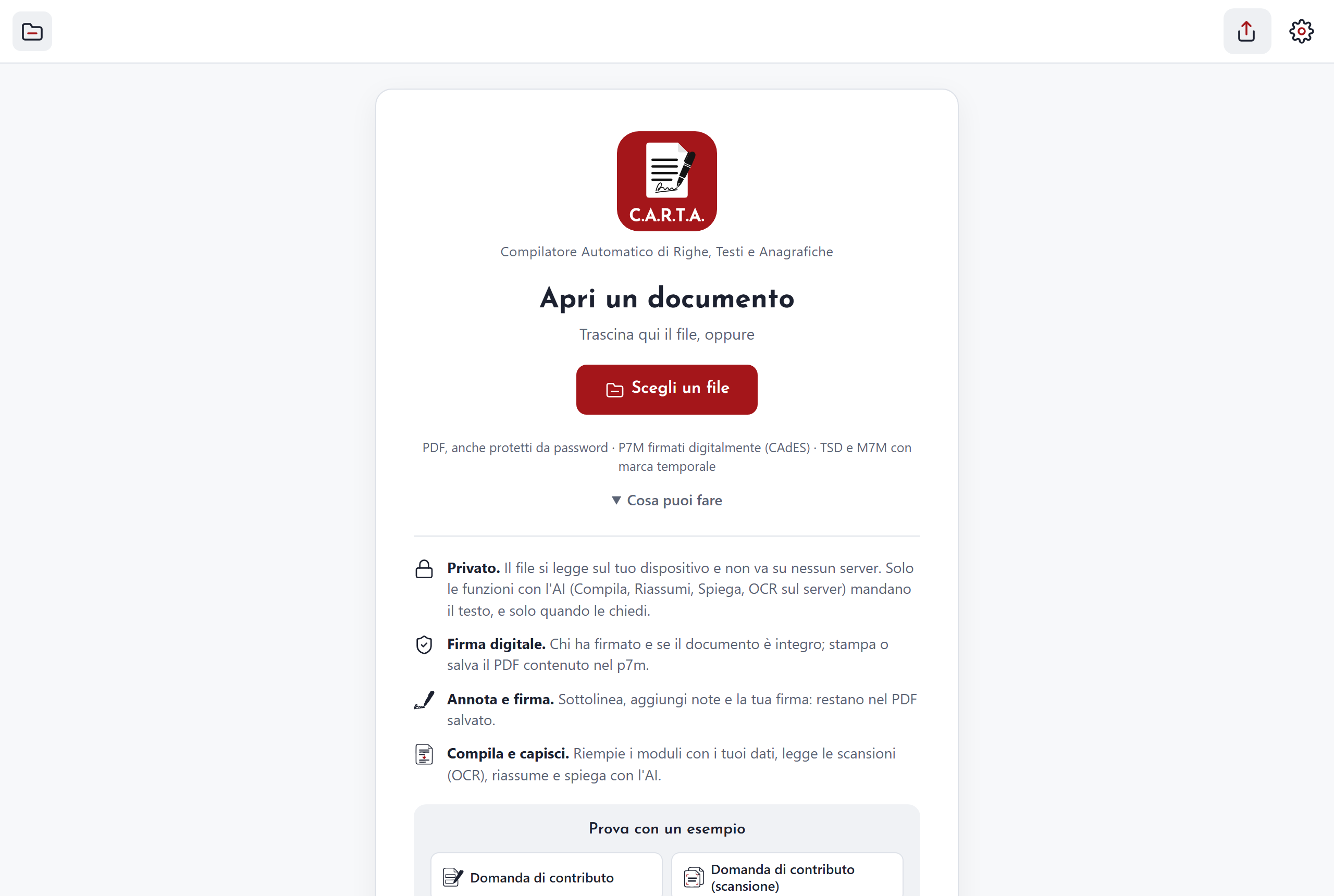
- Logo and full name. C-A-R-T-A stands for Compilatore Automatico di Righe, Testi e Anagrafiche, in Italian: an automatic filler for forms. It tells you right away where you are.
- "Choose a file" and the list of formats. Opens the file picker and shows which formats you can use. You need it when you want to start working on a document.
- "What you can do". Four short boxes: Private, Digital signature, Annotate and sign, Fill in and understand. They give you a quick idea before you open anything.
- The draft box. If you left a document half-done, you find it here. I say more below, in "Drafts and leaving".
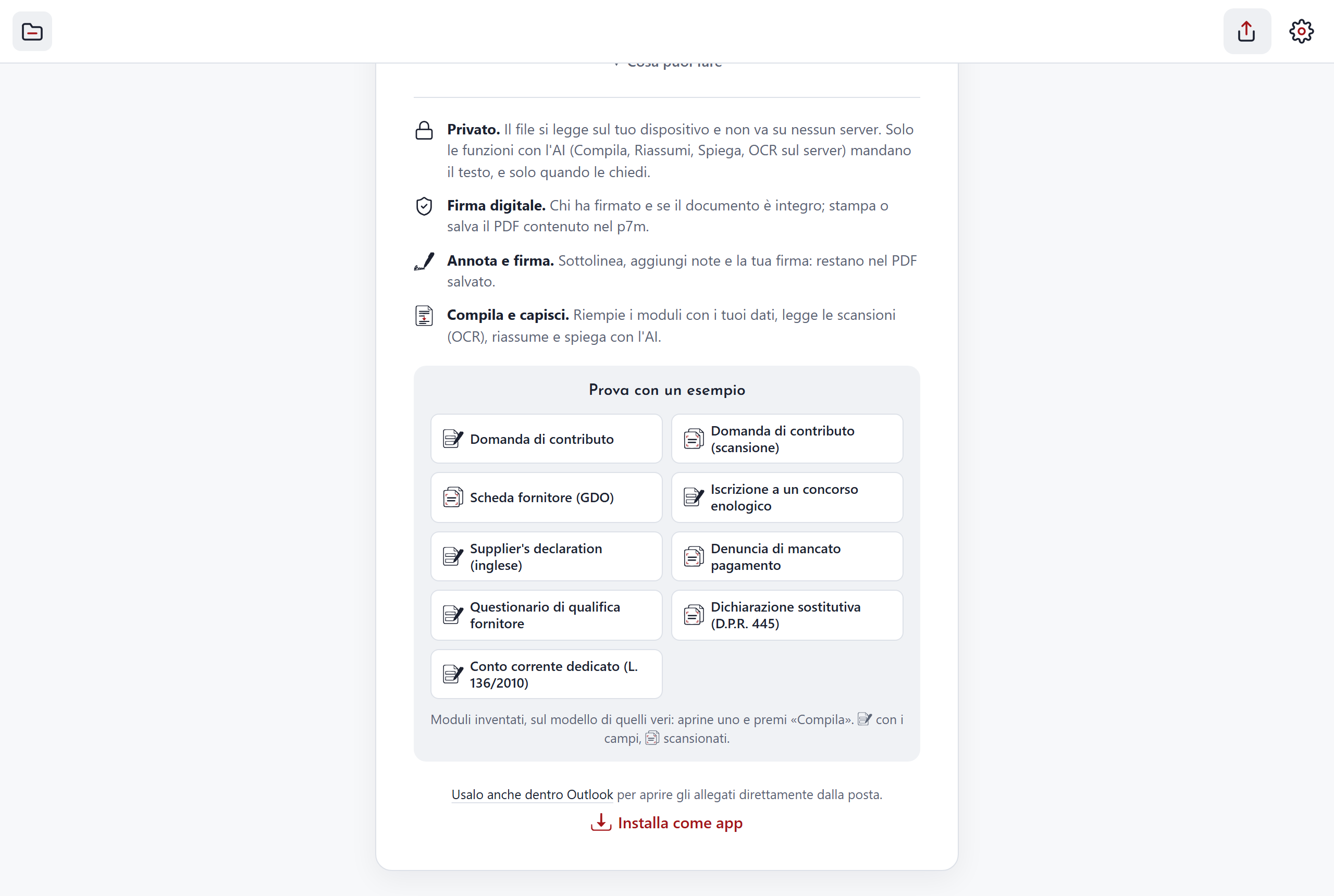
- Nine examples. Made-up forms, ready to open: a grant application (with fields to fill in, and a scanned version), a supplier sheet for large retailers, an entry form for a wine competition, a supplier's declaration in English, a notice of non-payment, a supplier qualification questionnaire, a sworn statement (Italian DPR 445) and a dedicated bank account declaration (Italian law 136/2010). You need them when you want to see C-A-R-T-A at work without using your own documents.
- The link for Outlook. Leads to the add-in that opens mail attachments. You need it if you work with Outlook (it is described in "Integrations").
- The version and "Install as an app". The version in use is written on the page. The button installs C-A-R-T-A as an app.
Opening a file
C-A-R-T-A opens the most common office documents, including digitally signed ones.
Formats
- PDF. Including password-protected ones: the "Protected document" window appears, where you type the password. For everyday PDFs.
- P7M. Digitally signed documents. C-A-R-T-A opens them in the encodings in use (DER, BER and Base64) and also when a signed file contains another one. You need it to read a document that reached you signed.
- P7S, TSD and M7M. Other types of signed or timestamped files. You need them when the document you received has one of these extensions.
- XML. XML files are shown with indentation so they can be read. You need it when you have to look inside a file of this kind.
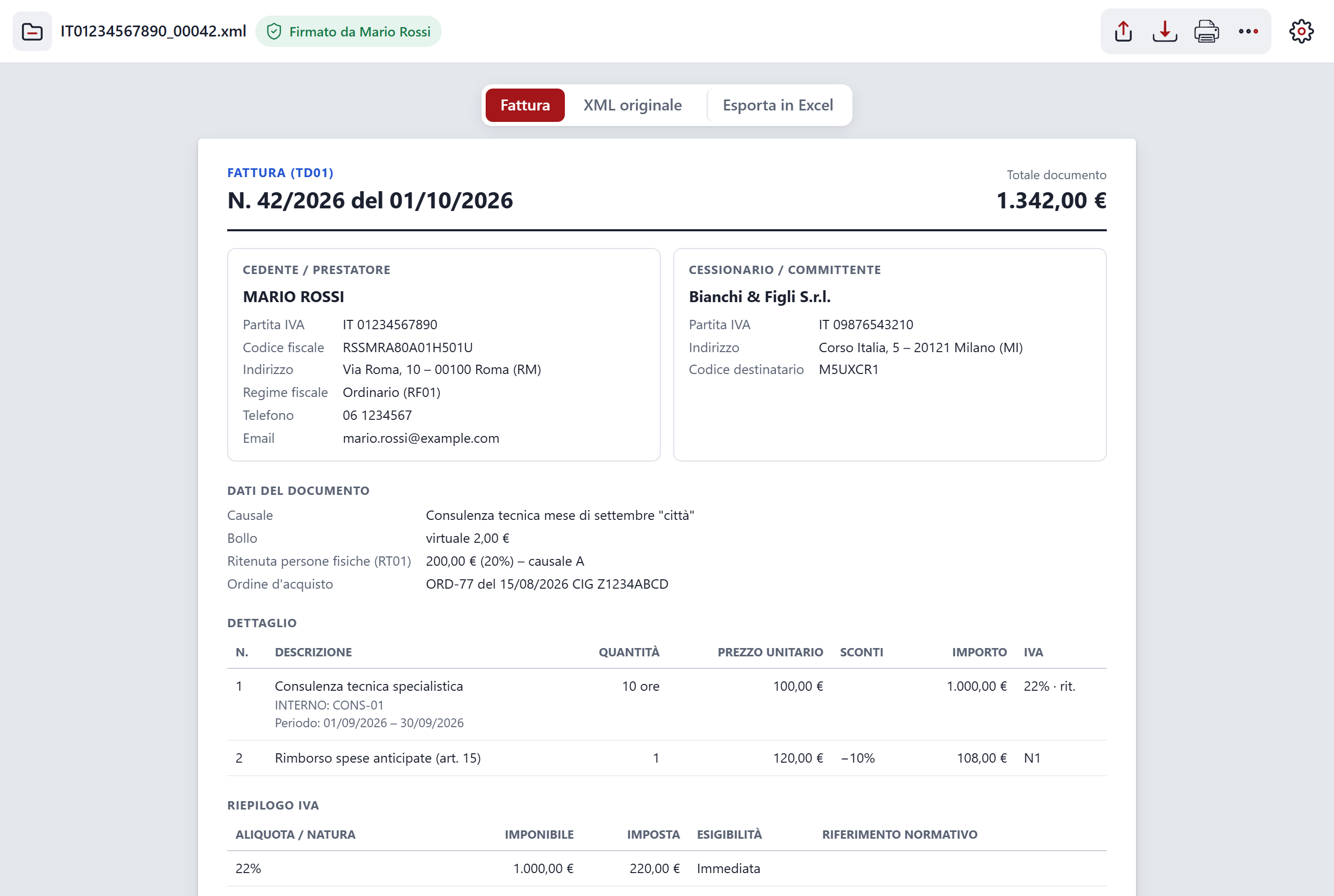
- Electronic invoices. The Italian FatturaPA, ordinary and simplified, is shown in readable form. The "Original XML" tab stays one click away. You need it when an invoice reaches you as an XML file and you want to read it without other programs.
- TXT and images. Text files and images (PNG, JPEG and similar) open so you can read, save, print or share them. To read the text of a scan (OCR), annotate it or sign it you need a PDF.
Ways to open them
- "Open" or "Choose a file". Opens your device's file picker.
- Ctrl+O. The same thing, from the keyboard.
- Drag and drop. Drag the file onto the page and it opens. Handy when you already have the folder open next to it.
- "Open with…". When C-A-R-T-A is installed as an app, it appears among the programs you can open a file with.
- From another window. Another browser window can hand it a file without going through the picker.
- From Android sharing. With the app installed, C-A-R-T-A appears among the destinations when you share a file from your phone.
Reading the document
These are the tools for moving through the pages and reading comfortably.
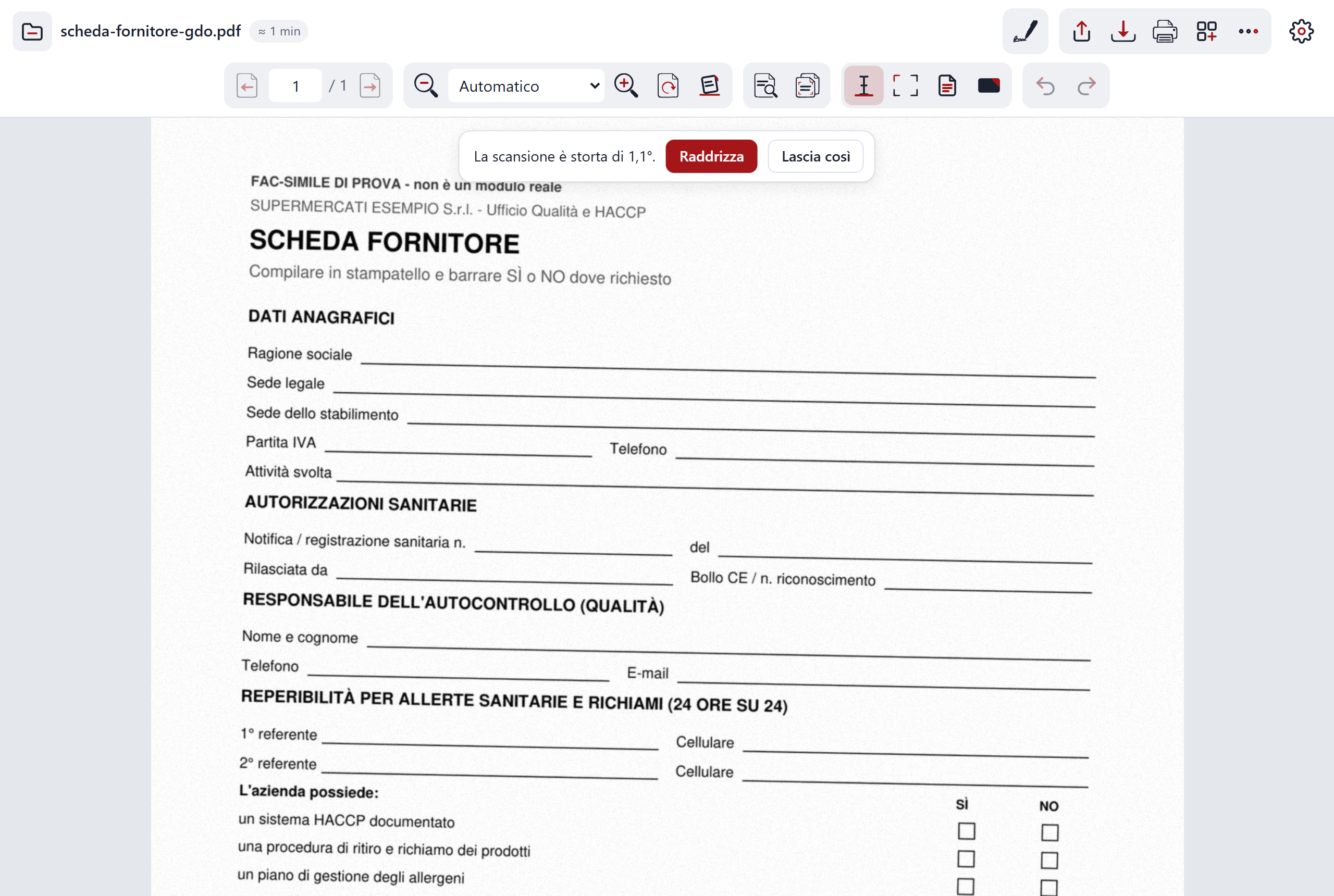
- Previous and next page, and the page number. Go back and forth between pages and see which page you are on.
- Zoom. You can choose Automatic, Page width, Whole page, Actual size, or a value from 50 to 400 %. From the keyboard: Ctrl and +, Ctrl and −, Ctrl and 0. Use it to read small text or to see the whole page.
- Rotate. Turns the pages by 90° at a time. Use it when the document is sideways. For a crooked scan there is "Straighten", just below.
- Straighten. The button appears by itself when a scan is crooked. It puts the sheet straight with one click.
- Find (Ctrl+F). Searches for a word in the document. Use it to jump to a spot in a long file.
- Sharp pages after zooming. If you enlarge with the browser's zoom, the pages are redrawn and stay sharp. Handy when you read a PDF with small print.
- Light and dark theme. C-A-R-T-A follows your device's theme: if your phone or computer is in dark mode, so is C-A-R-T-A. To darken the document's pages there is the "Night" filter (see the end of the page).
- Layout for phones. On a small screen, documents are laid out for the screen. Handy for reading on a phone.
- Links inside PDFs. Links in the PDF work. Use them to jump to another page or to a website from the document.
Night and Sepia are in the "More" menu; Bookmarks and Read aloud are on their way (see the end, in "Work in progress").
The toolbar adapts to the document
The toolbar at the top has many tools, but you do not need all of them for every file. C-A-R-T-A looks at the document you open and keeps the useful ones in view: for a form, Fill in and Sign; for a floor plan, Measure; for a long text, Summarise, Important points and Ask. This saves you from hunting for the right button among many.
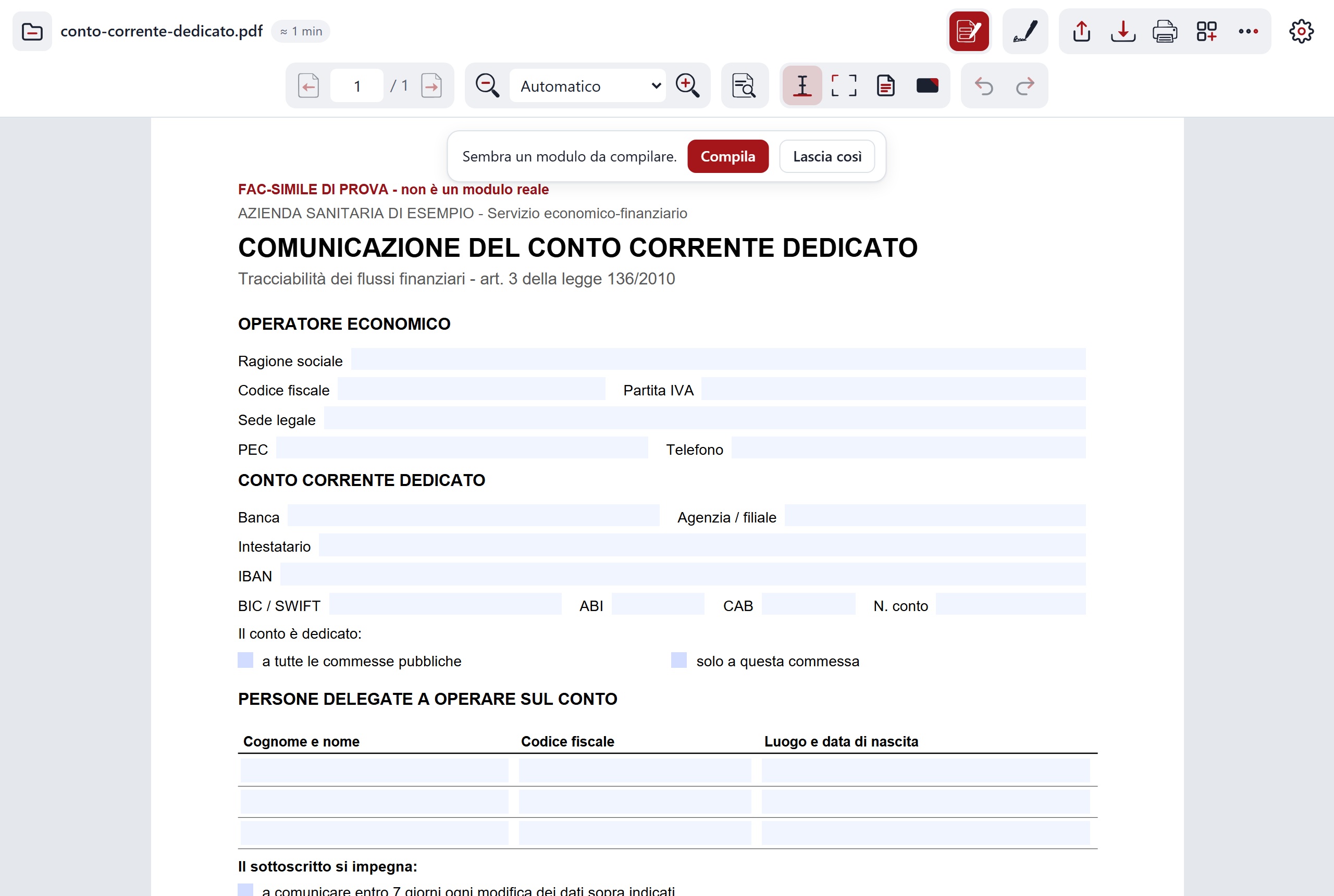
- The basic tools are always there. Save, Find, zoom and the pages never disappear.
- "All tools". The button shows the others too. Use it when a tool you need has been hidden by the toolbar. Your choice is remembered on this device.
- The limit. It is a choice made by looking at the content of the file: if C-A-R-T-A gets it wrong, one click on "All tools" sorts it out.
Compare with another PDF
Compares the open document with a second PDF and shows you what changed. Use it when a new version of a contract, an offer or a set of rules reaches you and you do not want to reread all of it. You find it in the "More" menu.
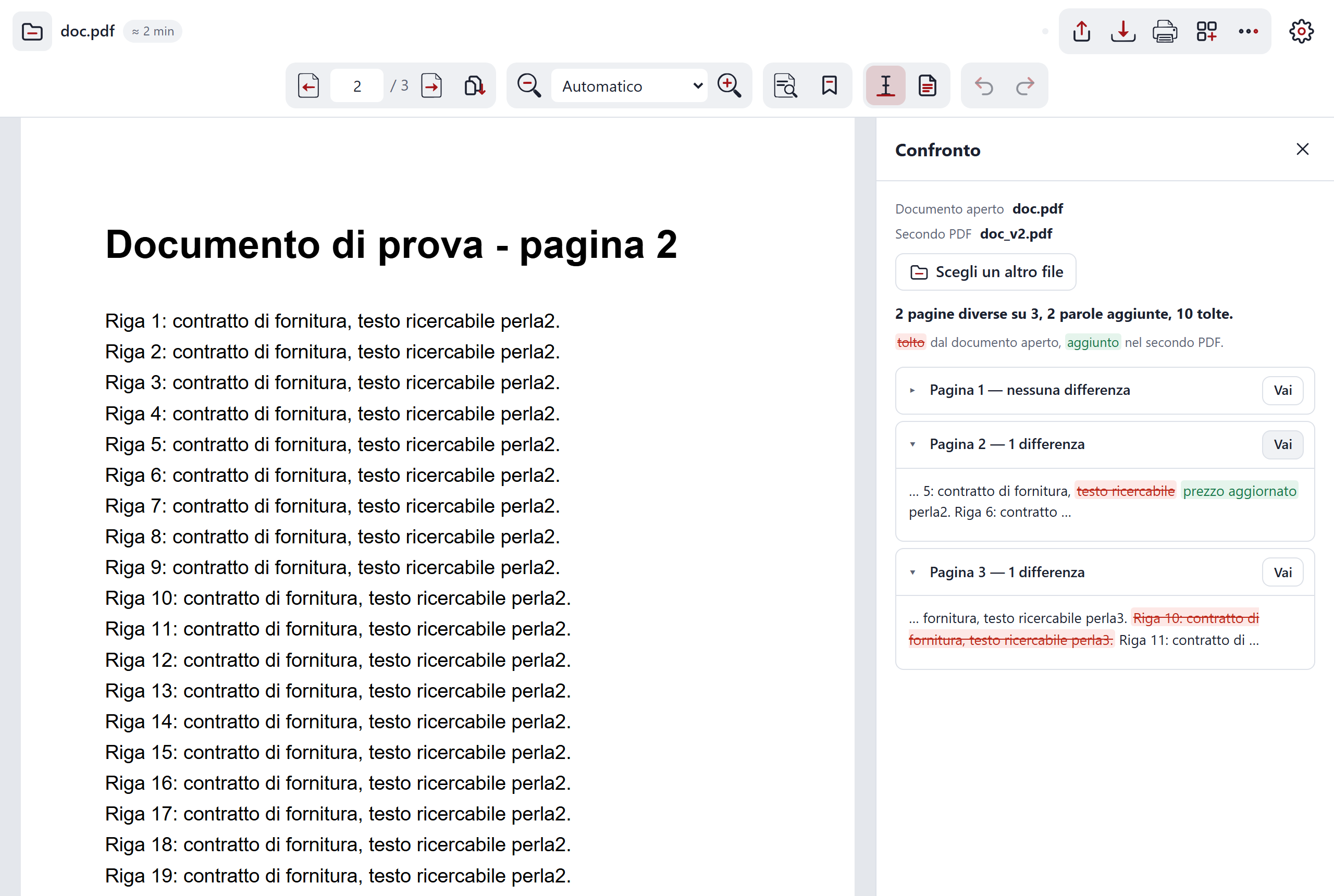
- Word by word, page by page. The comparison looks at every word and tells you on which page the difference is. Use it so you do not miss a small change, such as a figure or a date.
- Red and green. Words removed from the open document are in red, words added in the second PDF in green. You see at a glance what has gone and what is new.
- The summary. At the top it says how many pages differ and how many words were added and removed. Each page has a "Go" button that takes you there. Use it to go straight to the points to check.
- All in the browser. The comparison happens on your device. Neither file leaves it and the compiler service is not needed.
- The limit. Pages without text cannot be compared.
Pages
Shows the document's pages as thumbnails and lets you reorder them, rotate them, remove them and add others. Use it when a PDF has its pages in the wrong order, a page turned sideways, an extra page, or when you need to merge two documents. The "Pages" button is in the toolbar at the top.
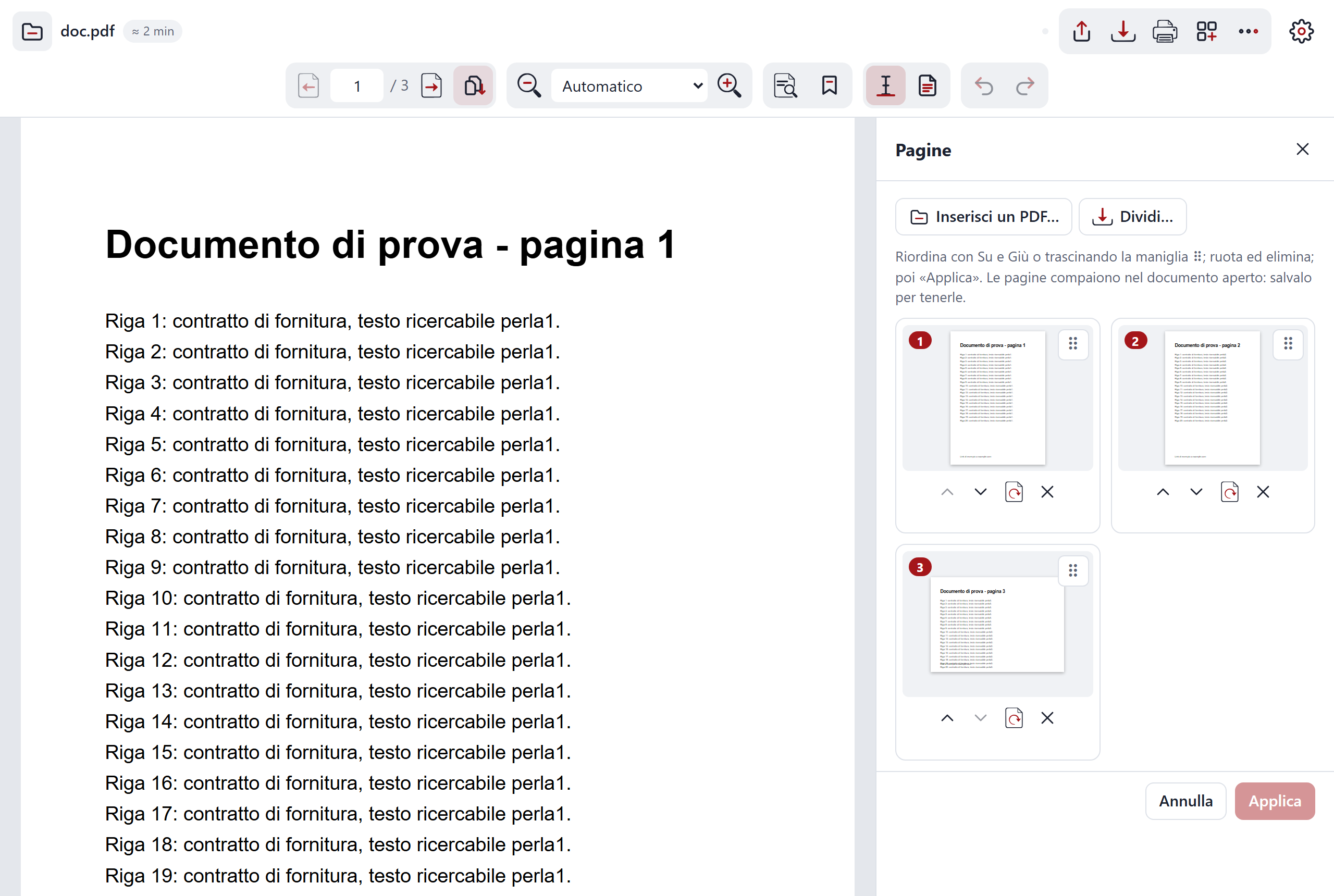
- Reorder. Drag the ⠿ handle of a thumbnail, or use the Up and Down buttons. Handy for changing the order without dragging: on a phone or with the keyboard.
- Rotate and Delete. Rotate turns the page by 90° at a time. Delete marks it for removal, and you can change your mind with "Restore" until you press "Apply".
- "Insert a PDF…". Puts the pages of another PDF at the end. Use it to merge two documents.
- "Split…". Type the pages you want (for example "1-3, 5") and save a new PDF with only those. The open document does not change.
- "Apply". The changes go into the open document, with the name "(reordered)". To keep them, save the document. Annotations and graphic signatures are kept.
- All in the browser. The file does not leave your device and the compiler service is not needed.
- The limit. With password-protected PDFs the button is off.
Compress
Makes the document lighter. Use it when a PDF made of scans is too heavy to send by email. You find it in the "More" menu, as "Compress…".
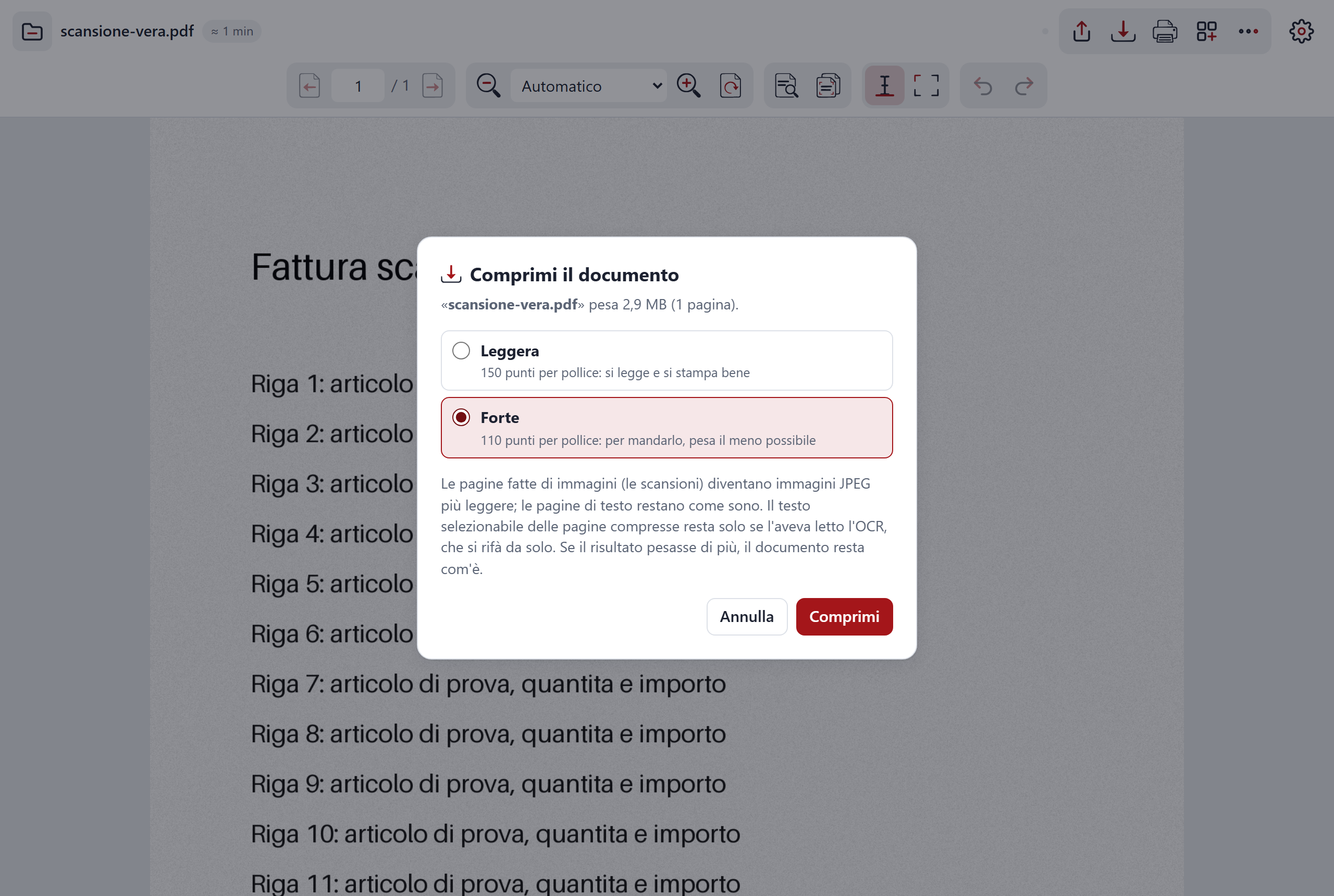
- Light or Strong. Light (150 dots per inch) reads and prints well. Strong (110) is as small as possible, for sending.
- Before and after. The window tells you how much the document weighs now; when it is done, a message gives the size before and after, in KB or MB.
- What changes. Pages made of images, that is scans, become lighter JPEG images. Text pages stay as they are.
- The text. The selectable text of a compressed page remains only if OCR had read it, which redoes itself.
- If it gets heavier. If the result would be heavier, C-A-R-T-A says so and leaves the document as it is.
- The limit. It is not useful for PDFs made only of text, and for password-protected ones the item is off. Save the document to keep the compressed version.
Measure
A ruler for floor plans and drawings: it measures distances and areas right on the page. Use it when you have a floor plan as a PDF and want to know how long a wall is or how many square metres a room has, without printing it. The "Measure" button is in the toolbar at the top.
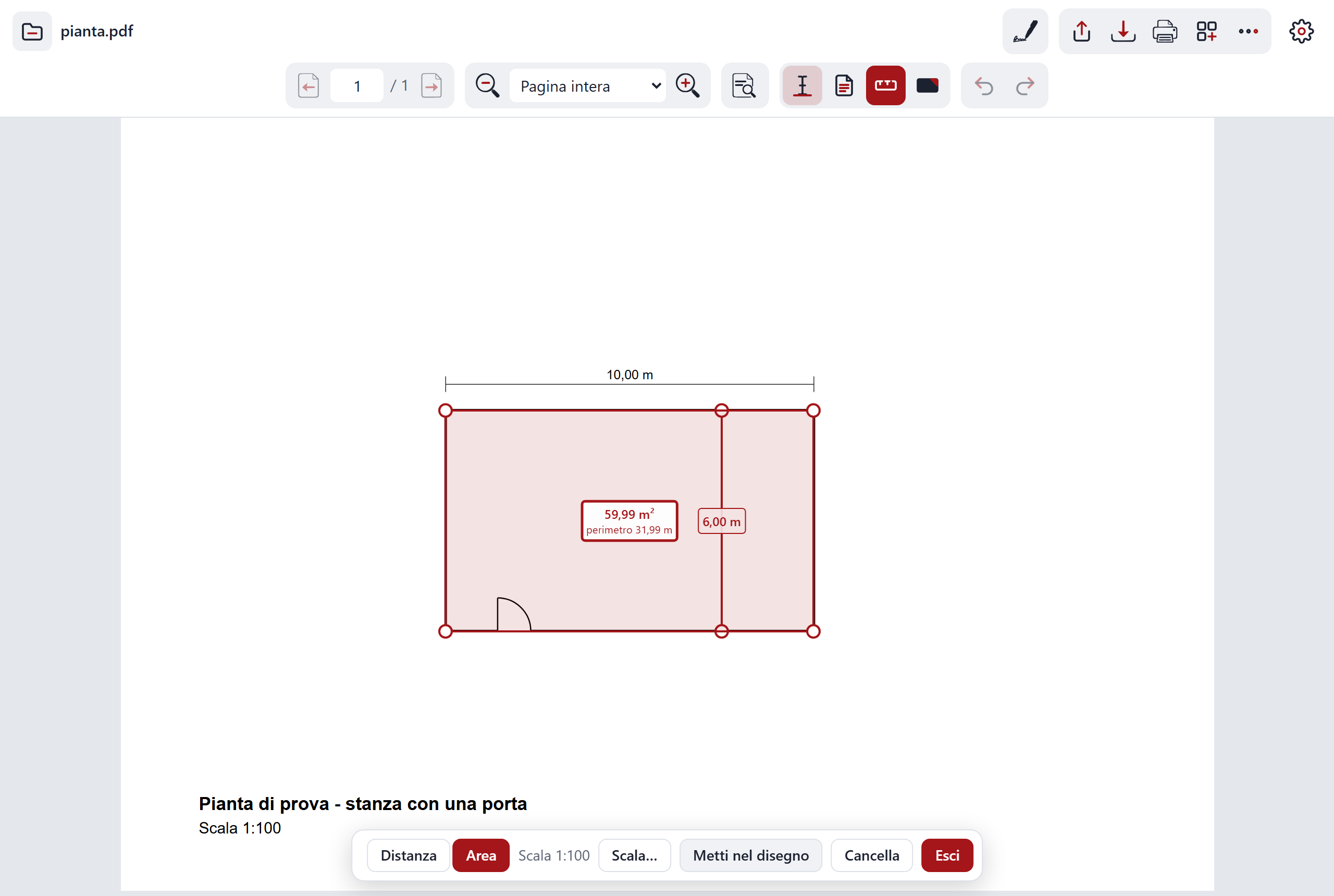
- Distance and Area. With "Distance" you click two points. With "Area" you click the corners and close on the first one: it gives you the area and the perimeter. The handles can be moved.
- The scale. It is needed to turn points on the drawing into metres. C-A-R-T-A suggests it from the "1:100" written on the drawing, if it finds one. Otherwise you set it from two points whose distance you know ("Scale…"). If you have connected the compiler service, the AI can also estimate it.
- "Put into the drawing". Writes the measurements into the PDF, so they stay when you save it.
- The limit. Precision depends on the drawing and on where you click: it is an aid, not a survey. Check the measurements that matter. The scale estimated by the AI is a suggestion to verify.
- One PDF at a time, in the browser. Measuring happens on your device. The page goes to the compiler service only if you ask for the AI scale estimate.
Digital signatures
When you open a signed file (.p7m and similar), C-A-R-T-A checks the signature right in the browser, on your device.
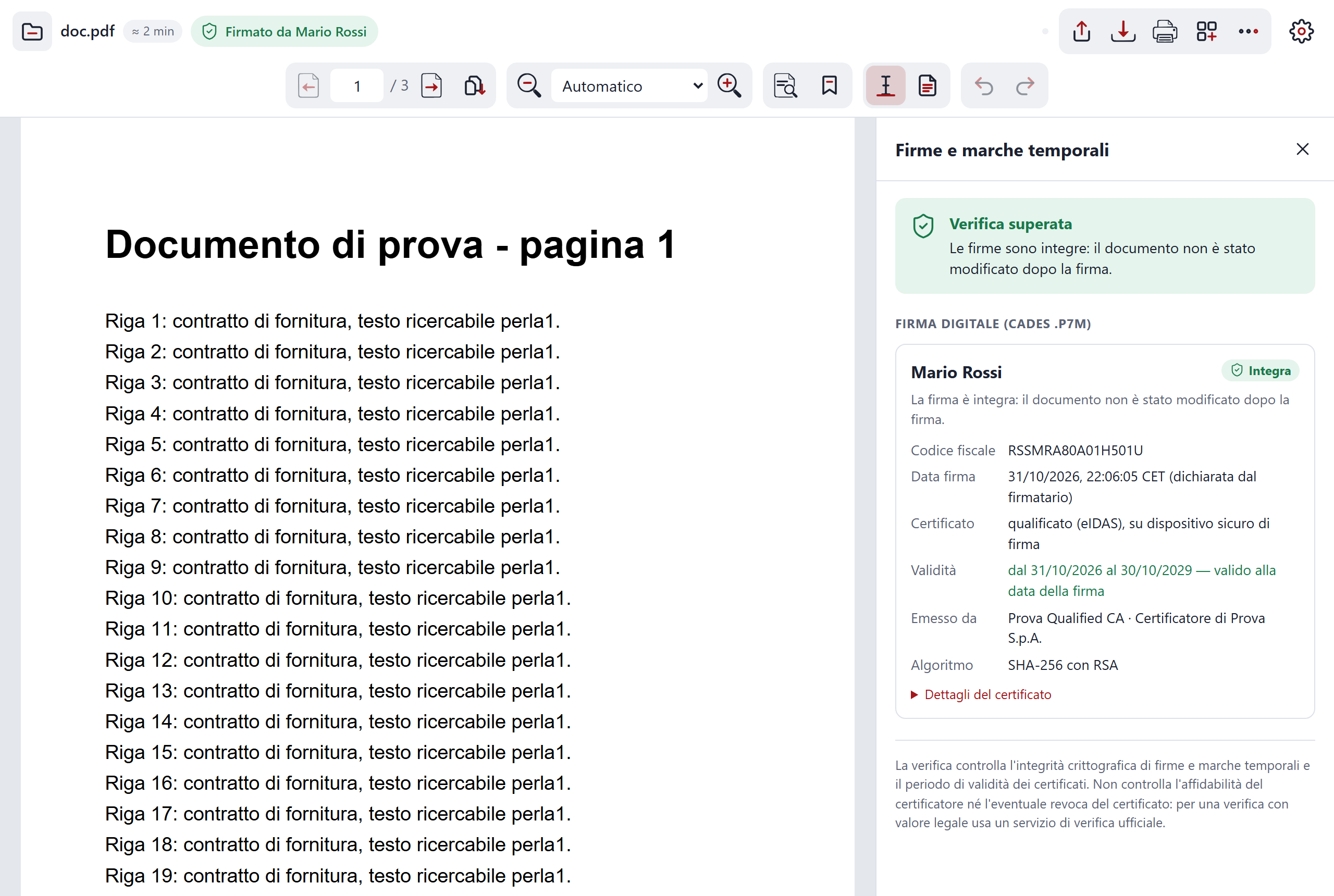
- The label on the document. In one line it says how the signature is doing: "Signed by" followed by the name, "Signed by N people", "Certificate expired", "Certificate not valid", "Signature not valid". If the file is only a timestamp (.tsd or .m7m), you see "Timestamp" or "Timestamp not verified"; if it is signed, the label talks about the signature and you find the timestamp in the panel. It lets you see at a glance whether you can trust the document.
- The "Signatures and timestamps" panel. For each signature it shows the signer, the tax code or VAT number, how long the certificate is valid and whether the certificate is qualified. It also shows the timestamps. Use it when you need the details: who signed, and with which certificate.
- The timestamp. Certifies the date and time at which the document existed. It proves since when a document has been unchanged, just as it is.
- Saving or sharing the document. With "Save" you keep the extracted document, that is the PDF without the signature envelope. With "Share" you can send the extracted document or the original signed file, the one to keep with its signature.
Text and OCR
A scanned document is a photograph: its text cannot be selected. OCR, that is text recognition, extracts the text from the image so you can select and copy it.
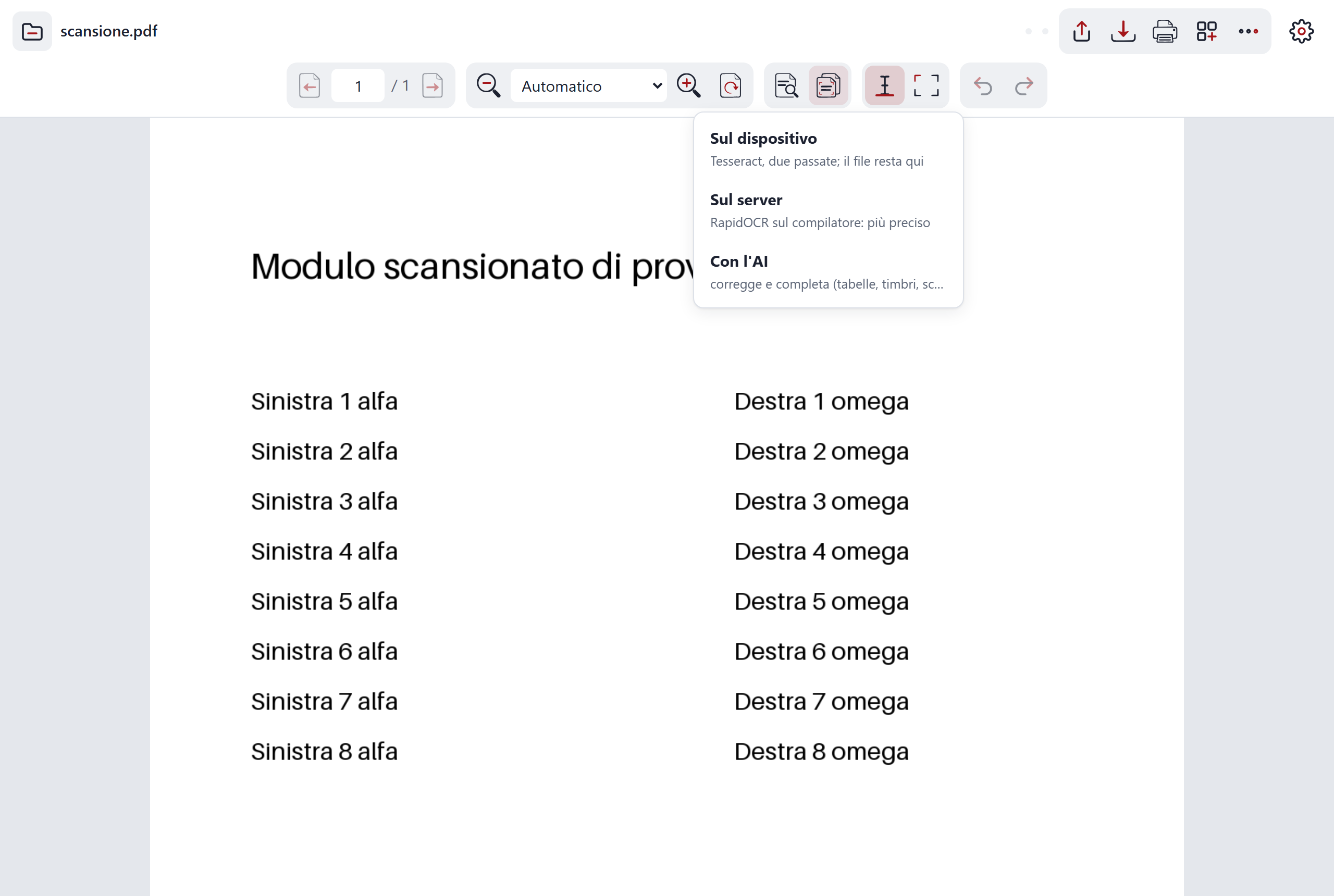
- Automatic OCR. On pages that contain images (a whole scan or just a piece), C-A-R-T-A recognises the missing text by itself, in the browser, in Italian. The engine is called Tesseract. Use it when you open a scan and want to copy its words.
- The OCR menu. Lets you choose where to recognise the text: "On the device", "On the server" or "With AI". The last two need the compiler service connected: the page is processed by it and no longer only on your device. Use it when reading on the device is not enough.
- Cleaning before OCR. Before reading, C-A-R-T-A erases the empty lines of forms and straightens the page. It helps scanned forms read better.
- "Text" selection. You select text line by line. Use it to copy a paragraph.
- "Box" selection. You draw a rectangle on the page, also by holding Alt while dragging. Use it to take a table, a figure or an image.
- The menu after a selection. After every selection a menu appears with Copy, Underline, Highlight, Translate, Explain and Image. "Image" is a screenshot of the box. It lets you decide right away what to do with what you selected. Explain uses AI and appears only with the compiler service connected. Translate uses AI if the compiler service is connected; without it, it opens Google Translate in a new tab with the selected text.
- The "Copied" box. After copying, it shows the exact text that went to the clipboard. Use it to check you took what you wanted.
Annotating and signing
Notes, underlining and the signature end up in the PDF you save.
- Note. Adds a written note to the document. Use it to leave a reminder for yourself or for whoever reads next.
- Underline and Highlight. Chosen from the menu that appears after a selection. Use them to mark important sentences.
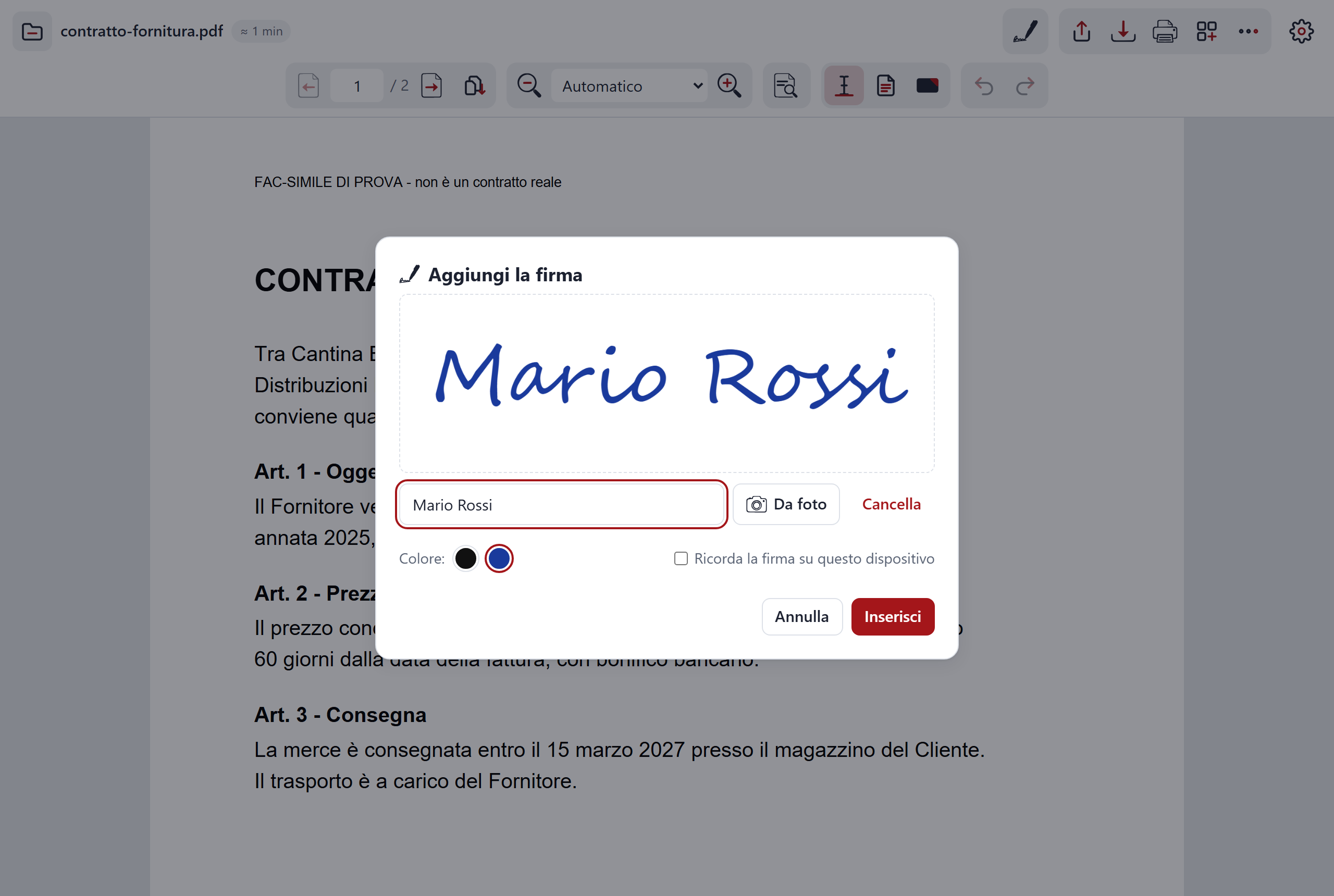
- Sign. You can draw it with your finger or the mouse, type it, or take it from a photo. The ink is black or blue. If you tick "Remember the signature on this device", C-A-R-T-A remembers it and you find it next time (remove it with "Forget"). You move and resize it with your finger, and fix it with "Done". Use it to sign a form without printing it.
- Undo and Redo (Ctrl+Z and Ctrl+Y). Remove or restore the last change. Use them when you make a wrong move.
- Form fields. Form fields are filled in by hand. Use them for forms that are already ready to be filled in.
AI features
These features are in a panel next to the PDF. They need the compiler service connected, the private service run by an organisation that makes the AI work: whoever manages it connects you with a link. The content goes to the AI only when you press the button.
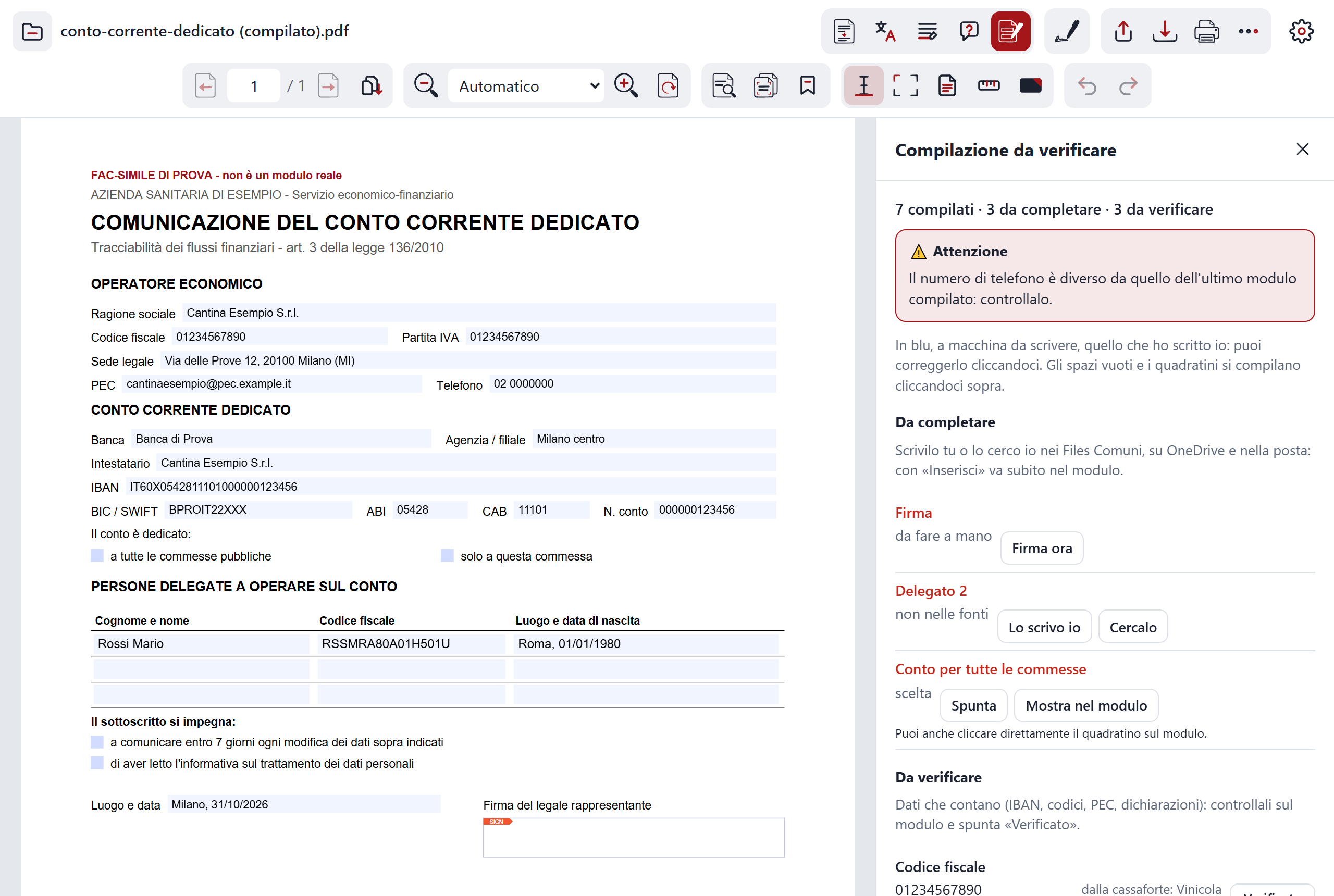
Fill in
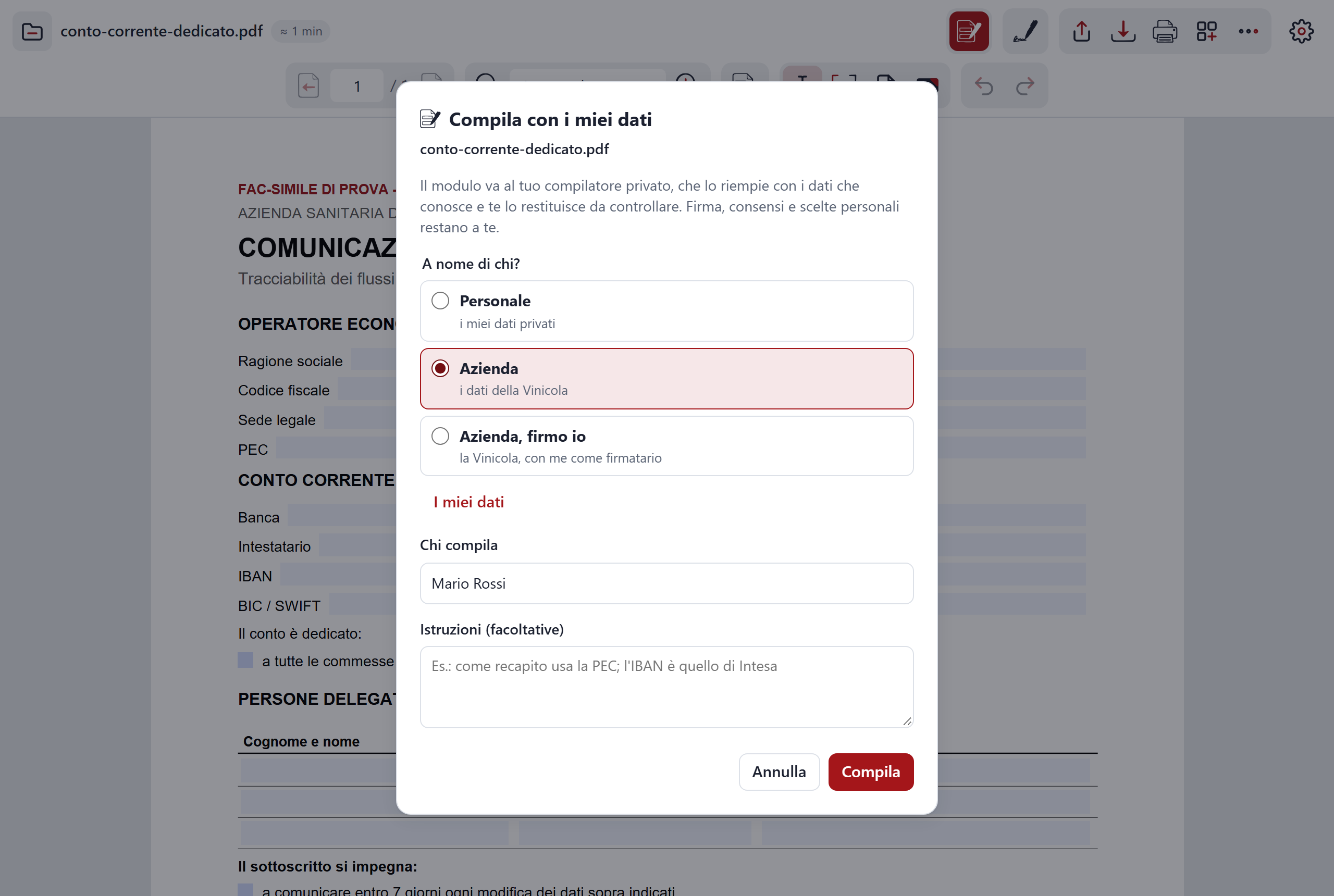
- "Fill in". Fills in a form with your data. First it asks "On whose behalf?": Personal, Company or Company, I sign. Then it asks "Who is filling in" and lets you write optional instructions. Use it when you have a form to fill in and do not want to retype the same data every time.
The "Filling to check" panel
- Every value with its source. For each field you see where the data comes from. One click takes you to the field in the form. Use it to check without searching.
- "To check". Marks the values to check. Until they are ticked, saving asks you to confirm. It stops you from saving an unchecked form by mistake.
- Missing values. For each one you can choose "I'll write it" or "Look for it"; for the signature there is "Sign now", for boxes "Tick". Use it when the vault does not have everything.
- "Yes, save them". Puts the new data from the form into the vault. Use it so you do not retype it next time.
- Red warnings. They appear if an IBAN, a PEC address, a tax code or an SDI code has changed. It stops an error on important data from slipping through.
Summarise, translate and underline
- "Summarise". Makes a summary of the document. Use it to understand what a long text is about before reading it.
- "Translate". Translates the whole document. Use it for a text in a language you do not read well.
- "Underline the important points". The AI picks the important sentences and underlines them in red. The "Important points" panel tells you why it chose them. Use it to review a document quickly.
- Translate and Explain on a selection. They work on the text you selected; Explain also works on an image crop (a box with no text). Use them for a single sentence, a technical term or a part you do not understand.
Ask the document
Ask a question about the open document and get a written answer. Use it when you are looking for a figure or a clause in a long text and do not want to reread it all.
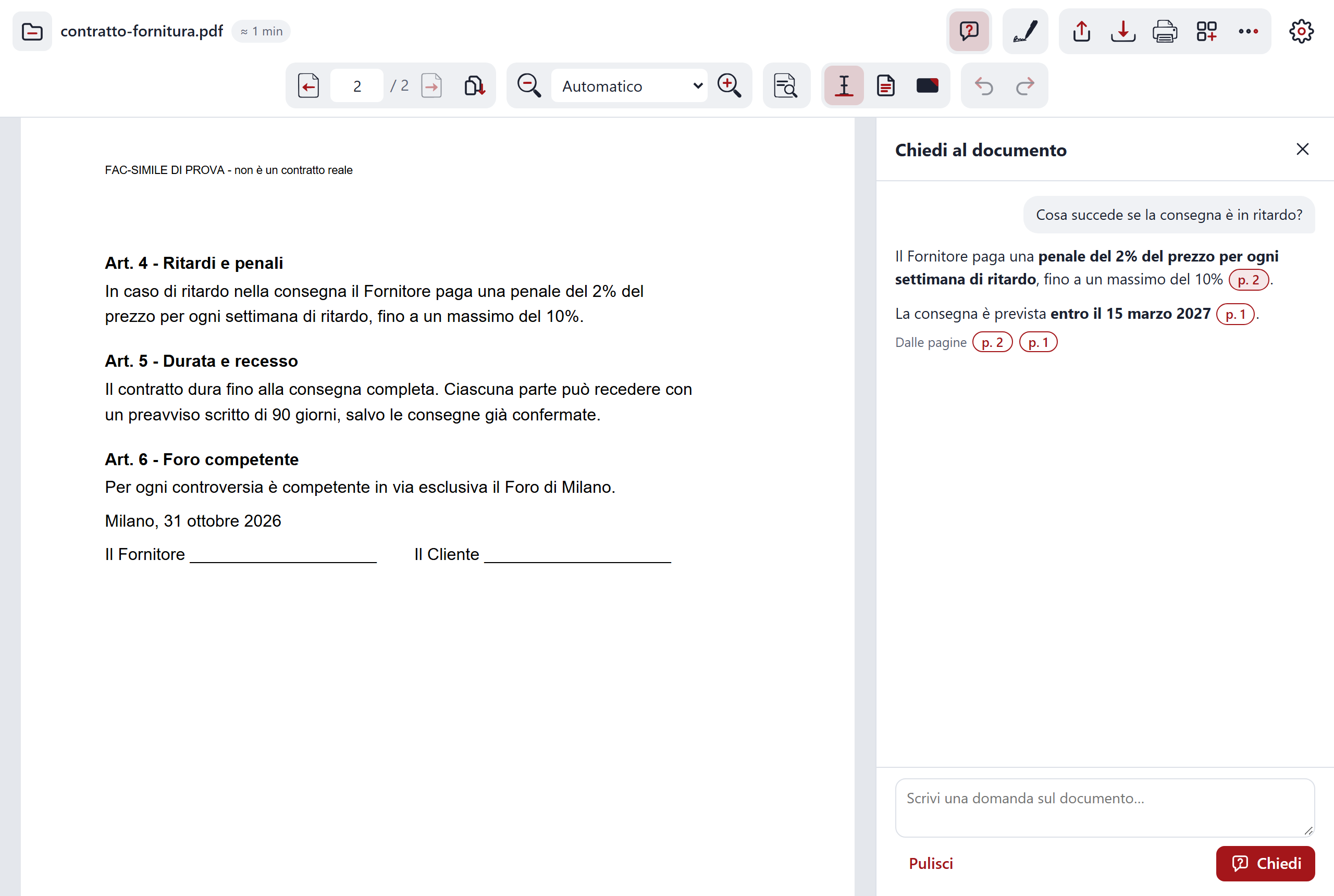
- The "Ask" button. It is in the AI pill and appears only with the compiler service connected. Use it to ask a question about the document you opened.
- The cited pages. Every answer says which pages it comes from. One click on the number takes you to the page. Use it to check the answer against the real text.
- Suggested questions. If you do not know what to ask, the panel offers a few. Use them as a starting point.
- The conversation. You can ask several questions in a row. The history is kept only in memory, while the document is open. When you close it, it disappears.
- When the text is sent. The text of the document goes to the compiler service only when you press the button. The AI can make mistakes: read the cited pages before trusting it.
Suggestions when you open a document
When you open a document, C-A-R-T-A looks at it and, if needed, suggests a move. Nothing starts by itself: you choose.
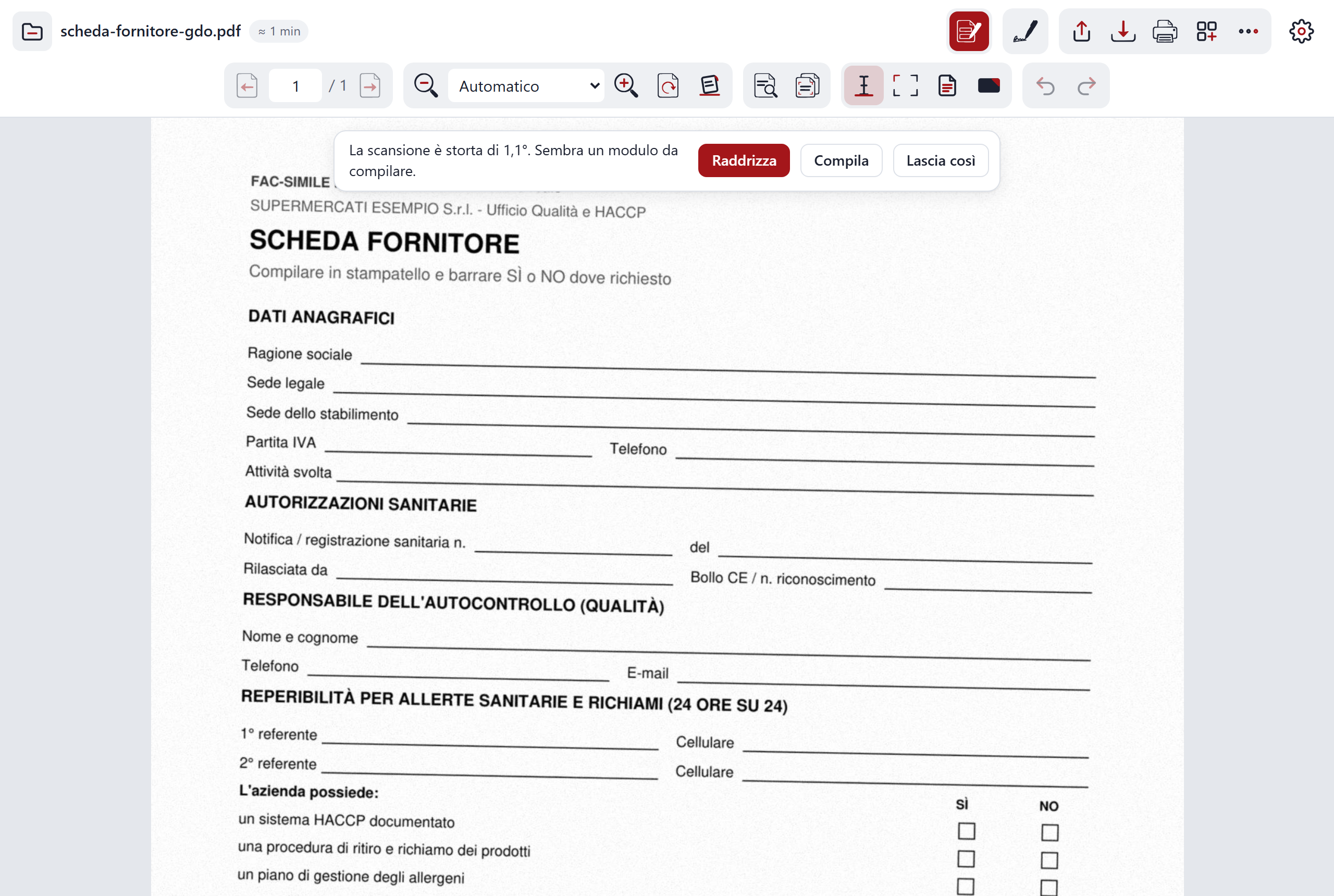
- The bar above the page. It can suggest Straighten (if the scan is crooked), Fill in (if the document looks like a form), Summarise (if the document is long) and Translate (if it is in English, German, French or Spanish). It saves you from looking for the right button.
- "Leave it as it is". Closes the suggestion and does nothing. Use it when the document is fine as it is.
- The reading time. Next to the file name you see "≈ N min". It is calculated at 200 words per minute. Use it to decide whether to read now or later.
The vault
To fill in a form you need your data: name, tax code, IBAN and so on. C-A-R-T-A keeps it in your organisation's password vault (Bitwarden or Vaultwarden), which it opens from the browser. Your password does not leave your device.
- The "Data for forms" note. Contains your personal data. Use it when you fill in as a private person.
- The "Company data for forms" note. Contains the company's data. Use it when you fill in on behalf of the company.
- "My data". The entry dedicated to your data for forms. Use it to find it all in one place.
When you use "Fill in" you choose "On whose behalf?": Personal, Company or Company, I sign. New data from the form is saved in the vault with "Yes, save them".
Settings
Here you set up the connection to the vault and to the compiler service, and read the notices.
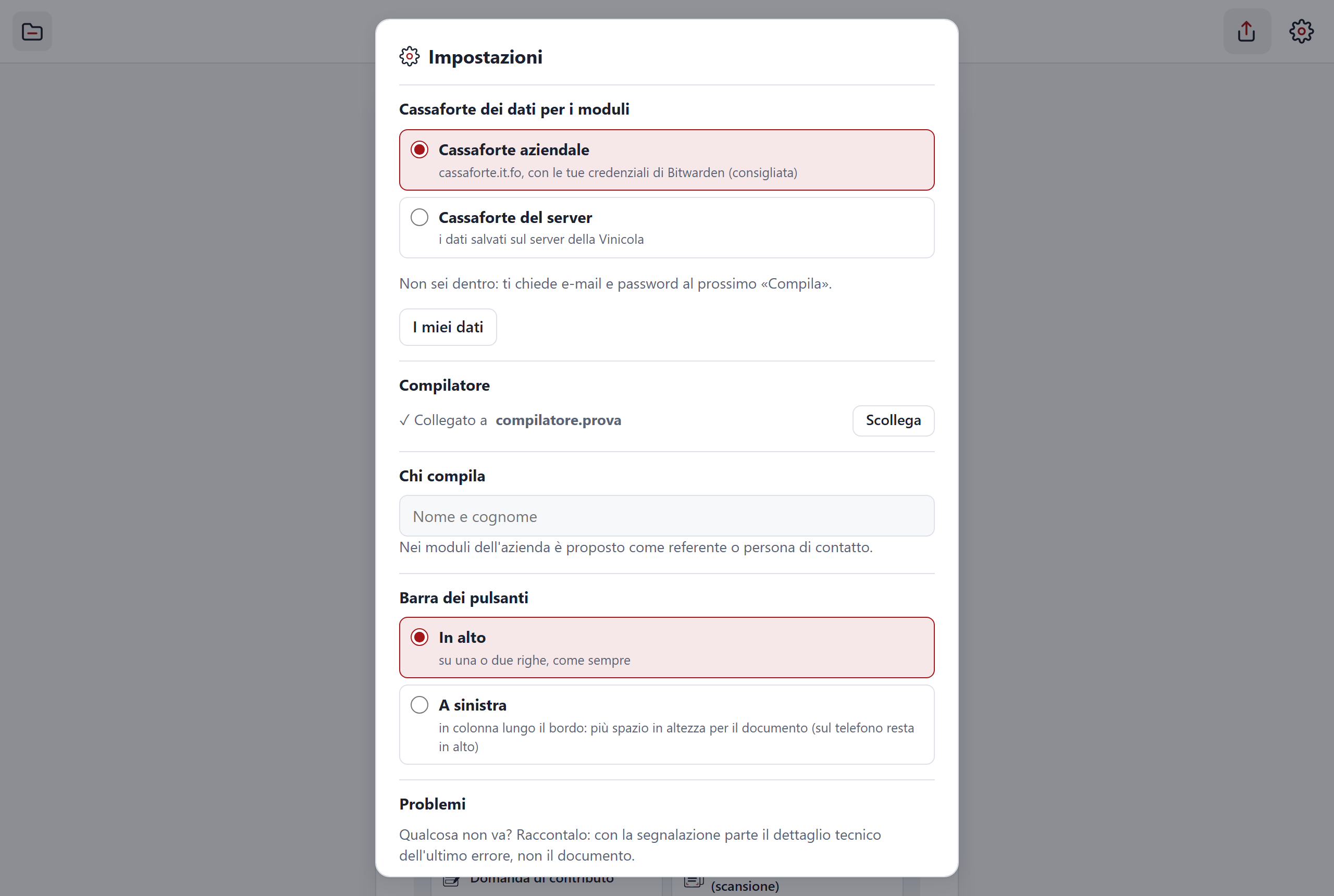
- The choice of vault. You say which vault to use for the data for forms. Needed the first time, or if you change vault.
- The compiler service status. Tells you whether the compiler service is connected. With "Disconnect" you detach it from this device. Use it when you no longer want to use the AI features on this device.
- "Who is filling in". You set who fills in, the same entry you find in the "Fill in" window. It saves you from making the choice for every form.
- Six notices. They explain: where files go, what is kept and where, that the AI can make mistakes, that the graphic signature is not a digital signature, what the limits of checking .p7m files are and what ends up in the vault. They let you know in advance what happens to your documents.
- The version in use. Written in the settings. Use it to tell whoever helps you which version you have.
Report a problem
If something is wrong, you can say so without leaving C-A-R-T-A. Use it when an error message is not enough to understand what happened. If the compiler service is connected, the report reaches whoever manages it; if not, the text is copied to the clipboard and you paste it into a message.
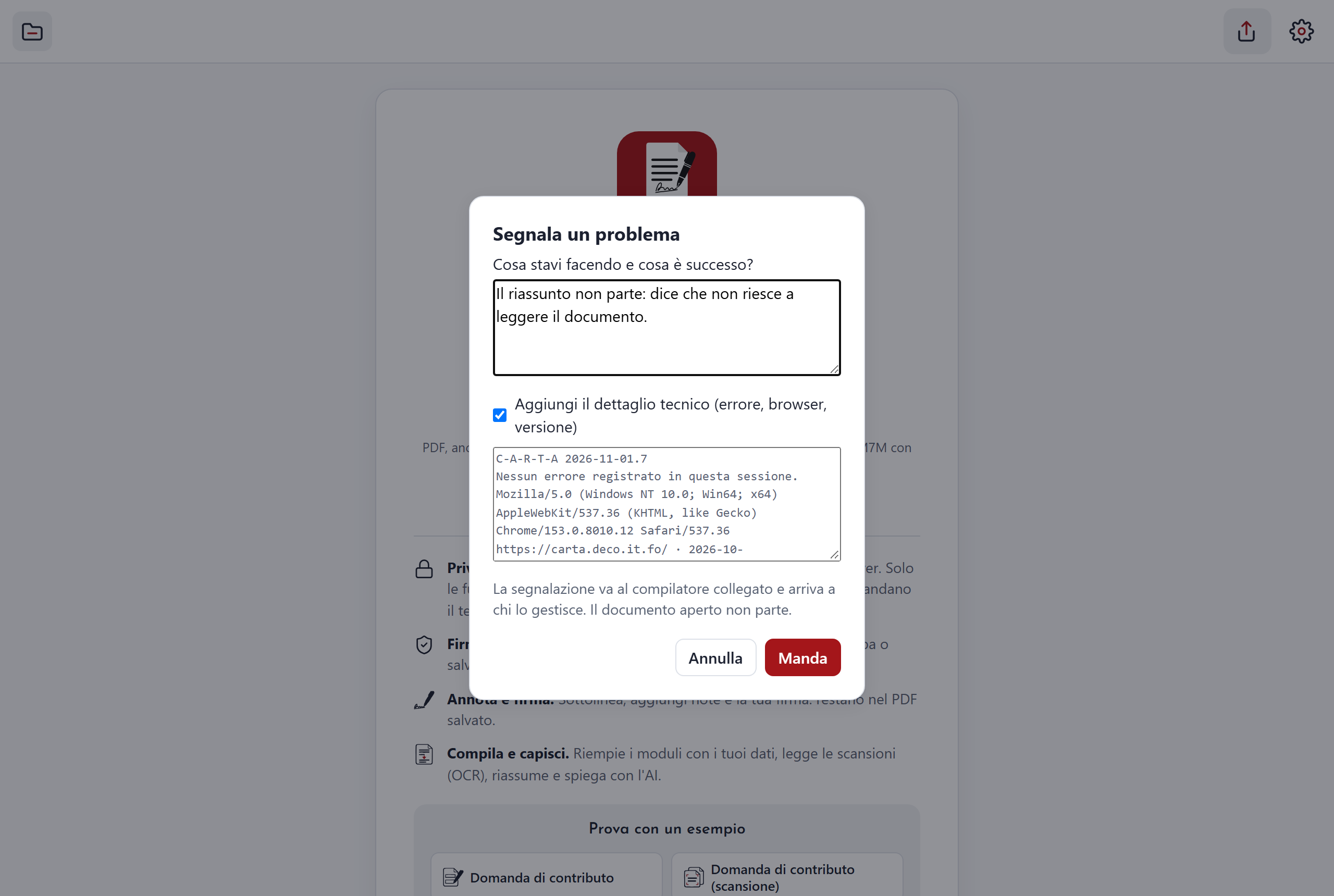
- Where to find it. In the error message, with the "Report" button; or in Settings, with "Report a problem".
- What is sent. Your description and, if you leave the tick, the technical detail: the error, the browser and the version. You see it in the window before sending and you can remove it.
- What is not sent. The open document is never sent with the report.
- The limit. The technical detail may contain the page address and the file name in the error message: read it before sending.
Error messages in plain language
When something fails, C-A-R-T-A says so in simple words, with what you can do: for example that the file does not open or that the compiler service is not responding. It helps you see at once whether the problem is the file, the network or the service. (Messages follow the language you chose, Italian or English.)
- "Details". The message has a "Details" button: it copies the technical text, useful to whoever helps you.
- "Report". From the same message you can send the report (see above).
Saving, printing, sharing
When you are done, the document leaves C-A-R-T-A in one of these three ways.
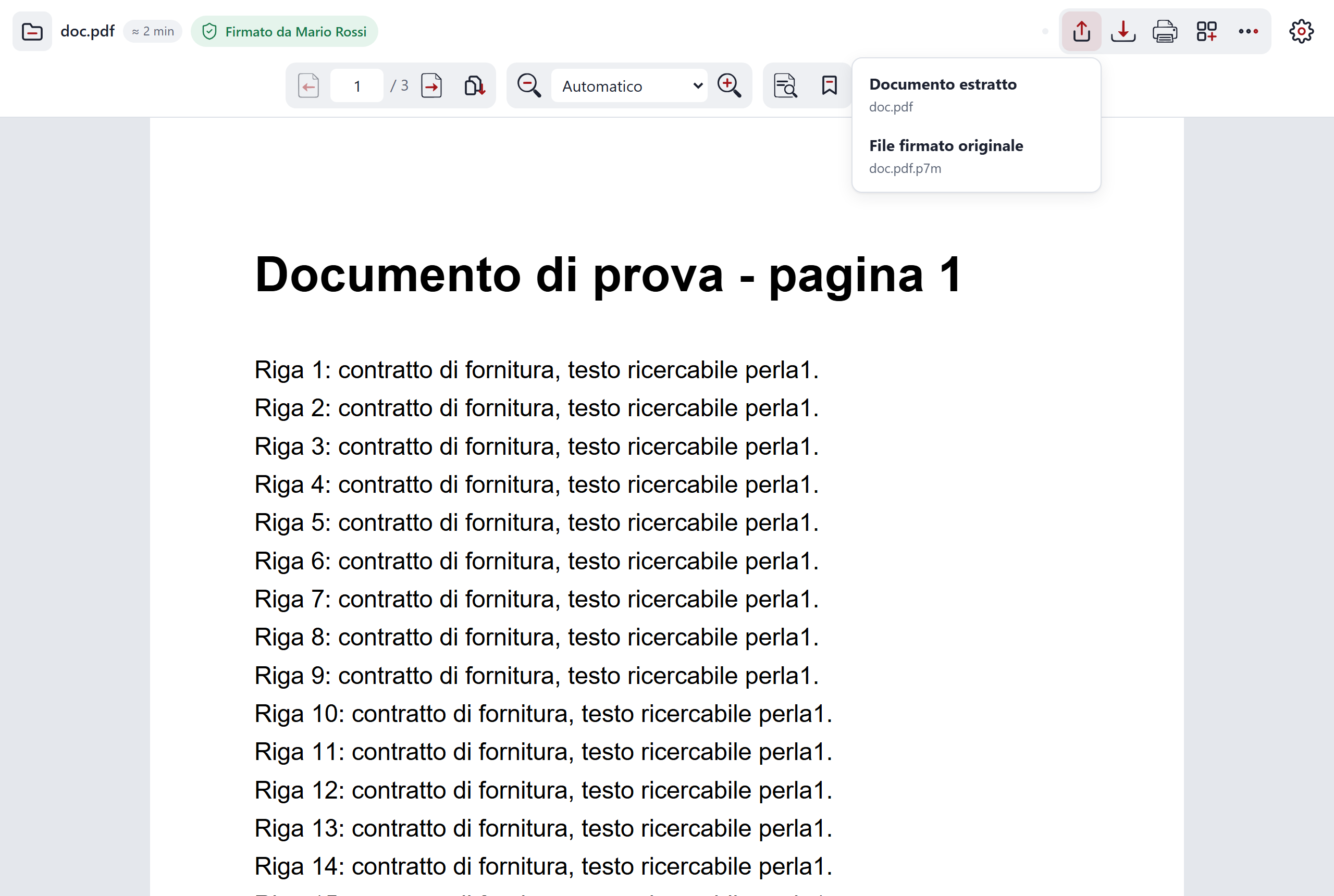
- "Save" (Ctrl+S). Saves the PDF with the filled-in values and the annotations. Use it to get the finished document.
- Print (Ctrl+P). In Chrome and Edge, on a computer, it uses the browser's print dialog. Otherwise it prints the pages redrawn at 150 DPI, that is 150 dots per inch. Use it to get the document on paper.
- "Share". Uses your device's sharing (Web Share) to send the document. If the file is signed, you can also share the original signed file. Use it to send the document by email or with a messaging app.
- With no document open. "Share" sends the app's link. Use it to let a colleague try C-A-R-T-A.
Drafts and leaving
C-A-R-T-A takes care not to let you lose your work.
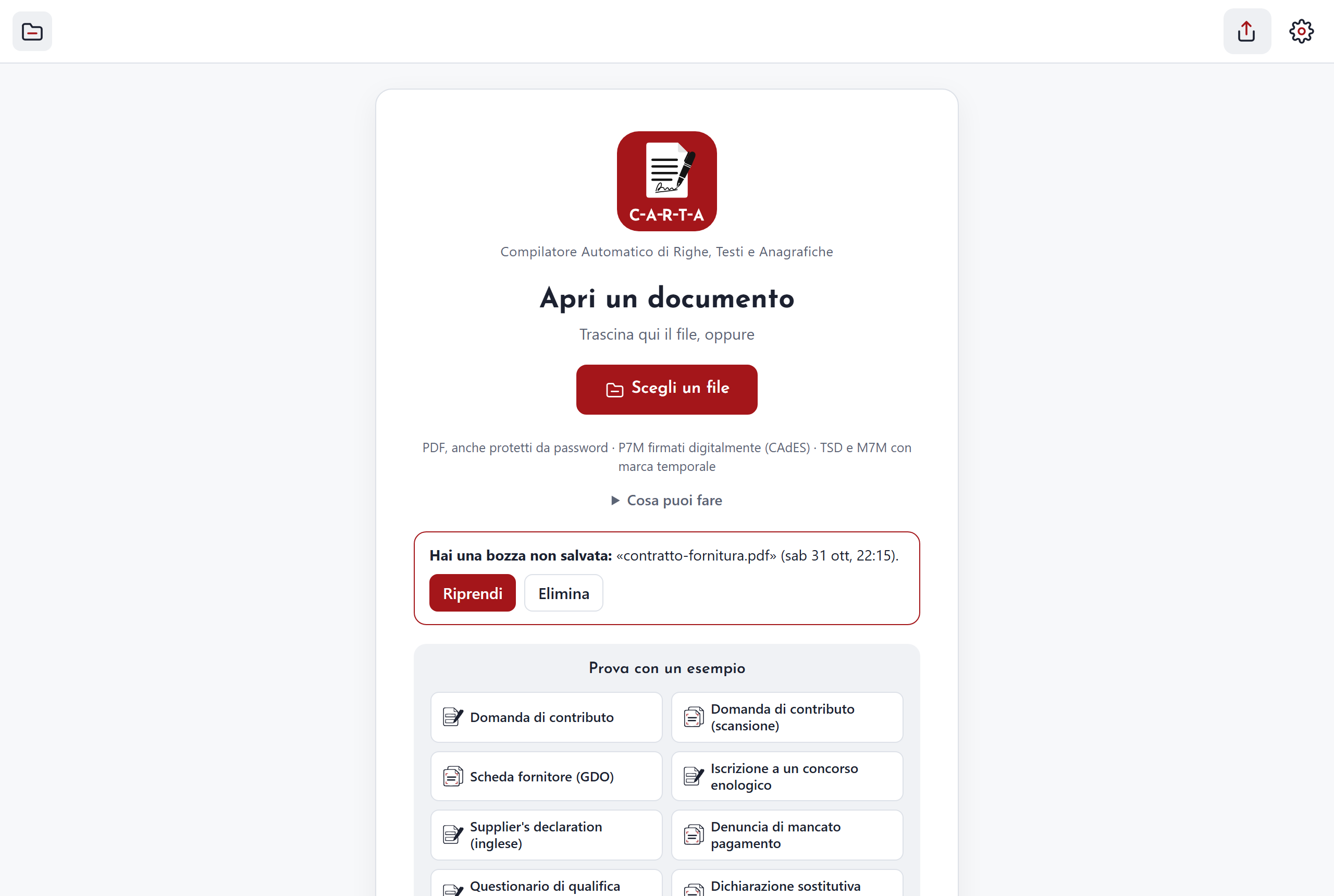
- The automatic draft. If you have made changes (filled-in data, signatures, notes), every 30 seconds C-A-R-T-A keeps a copy in your device's browser. Useful if the tab is closed by mistake or the device switches off.
- "Resume" or "Delete". On the home page, the draft box lets you choose. "Resume" reopens the document, "Delete" throws the copy away. Use it to restart from where you were or not to leave behind a copy you do not need.
- The question when leaving. If you leave after making changes, C-A-R-T-A asks: Cancel, Leave without saving or Save. It stops you losing changes with one click.
Installable app, offline, updates
C-A-R-T-A is used from the browser, but it can also be installed as an app.
- "Install as an app". Adds C-A-R-T-A to your device's programs. Use it to open it like a real app and to use "Open with…".
- Without a network. Once loaded, C-A-R-T-A also works offline. Handy on a train, or where there is no signal. The AI features still need the compiler service.
- "Update". Appears by itself when there is a new version and stays there until you press it. Use it to move to the new version when you choose.
- The version. Written on the home page. Use it to know which one you have. The list of changes is in the versions page.
Integrations
C-A-R-T-A can also be used outside its own site, with Outlook, with Windows, with the browser and with the iPad.
Outlook
- The add-in for Outlook. It is installed with a configuration file (manifest.xml). The "Open attachments" button opens a mail's attachments in C-A-R-T-A, including those inside certified emails (the postacert.eml file). Use it when you receive a signed document or a certified email and want to read it right away. The link is on the home page.
Windows
- Preview in classic Outlook and in File Explorer. A preview handler shows the contents of .pdf, .p7m, .p7s, .tsd and .m7m files without opening them. It uses WebView2, Microsoft's component that shows web pages inside programs. Use it to have a quick look at a file before opening it.
- Icons and shortcut. Files of these types get C-A-R-T-A's icons, and a shortcut is added. It helps you recognise the files at once.
- A single installer. The installer is self-extracting: it opens by itself and extracts the files it needs. Use it to install everything in one go.
Chrome and Edge
- The "Open in C-A-R-T-A" extension (version 1.0.1). PDFs you find on the web open in C-A-R-T-A automatically. Files on your computer open if you allow it in the browser. Use it to read and annotate PDFs without downloading them first.
- Right-click and the icon. You can open a PDF in C-A-R-T-A with a right-click or from the extension's icon. Use it when you want to choose case by case.
- "Always open PDFs in C-A-R-T-A". An option of the extension. Use it if you want PDFs to always open in C-A-R-T-A, without choosing every time.
iPad
- The "Open in C-A-R-T-A" shortcut. Works with the iPad's Shortcuts app and keeps the file aside for 10 minutes. Use it to bring a file into C-A-R-T-A from another app.
The compiler service
- Connecting a device with a link. Whoever manages the compiler service sends a link, and the device connects by opening it. Use it to switch on the AI features on a new phone, tablet or computer.
Work in progress
These are the novelties of the 31 October 2026 version. They are still in progress and may change.
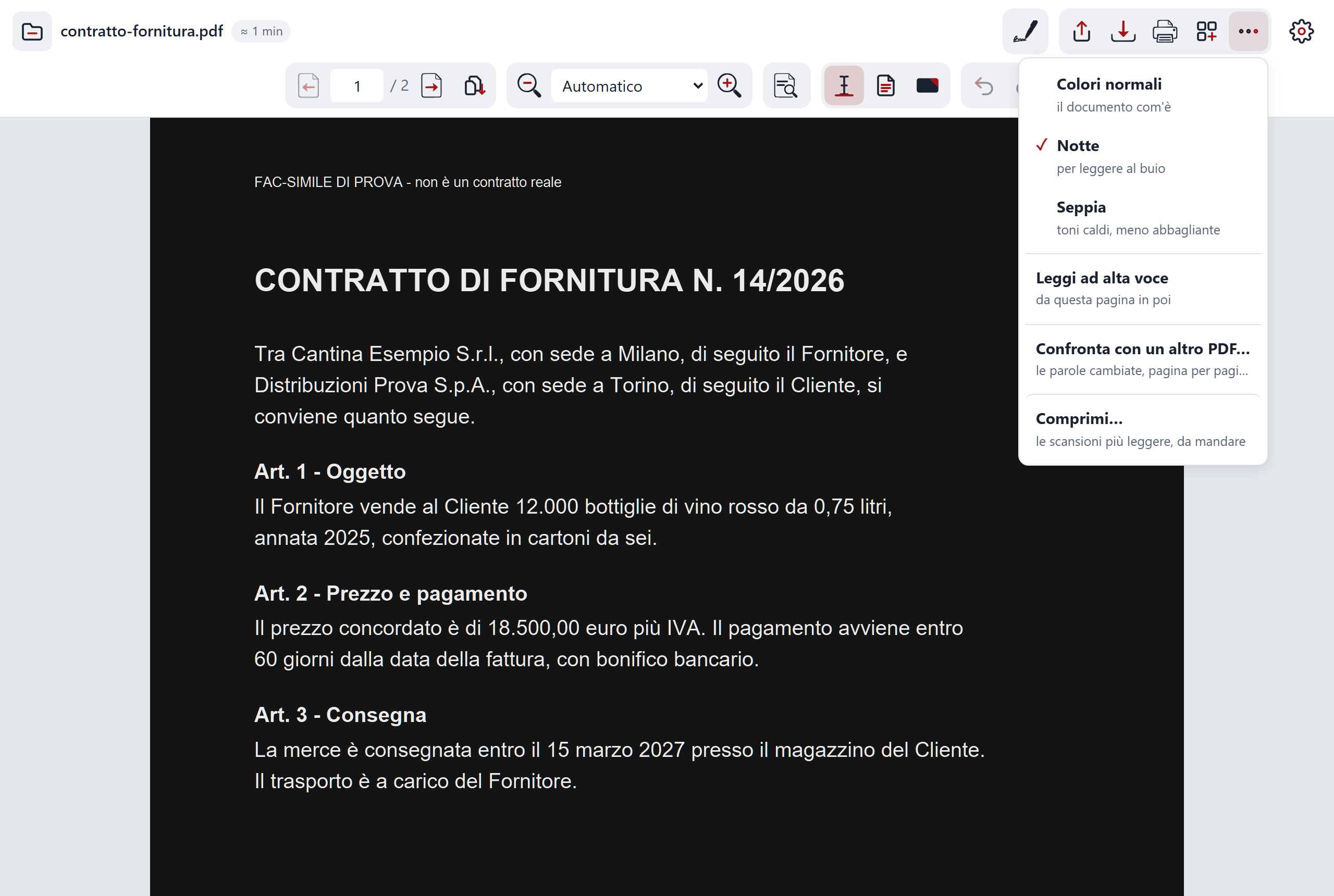
- Night and Sepia. Two reading filters that change the look of the pages. You find them in the "More" menu, the button with three dots. C-A-R-T-A remembers your choice. Use them when a white page is not comfortable, for example in the evening.
- Bookmarks. Coming, not yet available.
- Read aloud. Coming, not yet available.
C-A-R-T-A opens in the browser, with nothing to install. The code is public: you find it in the pdf folder of github.com/adecordi/adecordi.github.io. What changed in each version is in the versions page.
Export to Excel. With an electronic invoice open, "Export to Excel" downloads a CSV file with the header (number, date, supplier, customer, taxable amount, VAT, total, due date) and all the lines, which Excel opens already set up for Italian. Use it so you do not retype invoices into your accounting software or a spreadsheet; everything happens in the browser.
Ask the document by voice
In the "Ask the document" panel there is a microphone: ask your question out loud ("summarise the main parts", "where does it talk about the penalty?"), the answer appears in writing, is read aloud and, if it cites a passage, the page goes there and the passage is highlighted. It works with Chrome, Edge and Safari; with Chrome the voice goes through Google's servers to become text, and the microphone switches on only when you tap it.
Check revocation
In the signatures panel, with the compiler service connected, "Check revocation" asks the certificate authority whether the signer's certificate has been revoked, and when relative to the date of signing (revoked after signing means it was valid at the time of signing). Only certificates are sent, never the document.
Searchable PDF
A scan is a photograph: without OCR it can be neither searched nor copied. After C-A-R-T-A has recognised its text, "Save as searchable PDF" ("More" menu) writes that text into the file, invisible under the image: the saved PDF can be searched and copied in any program, even by your accountant. Pages not yet read stay as they are.
Flatten for public-administration portals
Many portals (grants, business-registration desks, farming paperwork) reject forms with fields that can still be edited. "Flatten" ("More" menu) merges the filled-in fields, the notes, the underlining and the graphic signature into the page, and saves an ordinary PDF. It is not a PDF/A: if the portal requires one, it has to be converted with a dedicated program. If the file was digitally signed, the signature no longer counts on the flattened file.
Italian and English
C-A-R-T-A speaks Italian and English: the language follows your browser's, or you choose it in Settings > Language. The toolbar, the home page, the menus, Settings and the messages change at once; some panels are still in Italian only.
Check the form
Before you send a form, C-A-R-T-A checks required fields left empty and badly written data: Italian tax code and VAT number (with their check digit), IBAN, postcode, certified e-mail, dates, Yes/No boxes ticked twice or not at all. It runs before «Save» and from the More menu; tapping a problem takes you to the field. Everything stays in the browser.