How to use it
Here you will find step-by-step guides: how to open a file, how to install C-A-R-T-A as an app, how to connect the compiler service and fill in a form, how to use it with Outlook and with your browser. At the end there is a list of keyboard shortcuts.
To find out what it can do, go to the features page.
Opening a file
There are three ways. Use whichever is most comfortable.
- Choose the file. On the home page press "Choose a file". With a document already open, use "Open" in the toolbar, or press
Ctrl+O. - Drag it. Take the file from your computer, bring it onto the C-A-R-T-A page and drop it.
- "Open with…". With the app installed on your computer, right-click the file, choose "Open with…" and then C-A-R-T-A. With the app installed on Android, tap Share from another app and choose C-A-R-T-A. This way works for PDFs and for signed files (.p7m, .tsd, .m7m).
Further down there are more ways: from Outlook, from Chrome or Edge, and the iPad shortcut.
Which files it opens
- PDF, including password-protected ones: the "Protected document" window appears and you type the password.
- Signed files: .p7m, .p7s, .tsd and .m7m, even when a signed file contains another one. The "Signatures and timestamps" panel shows who signed.
- Electronic invoices (Italian FatturaPA, ordinary and simplified): you see them in readable form. The "Original XML" tab stays one click away.
- Other XML files, text files (.txt) and images.
What happens after opening
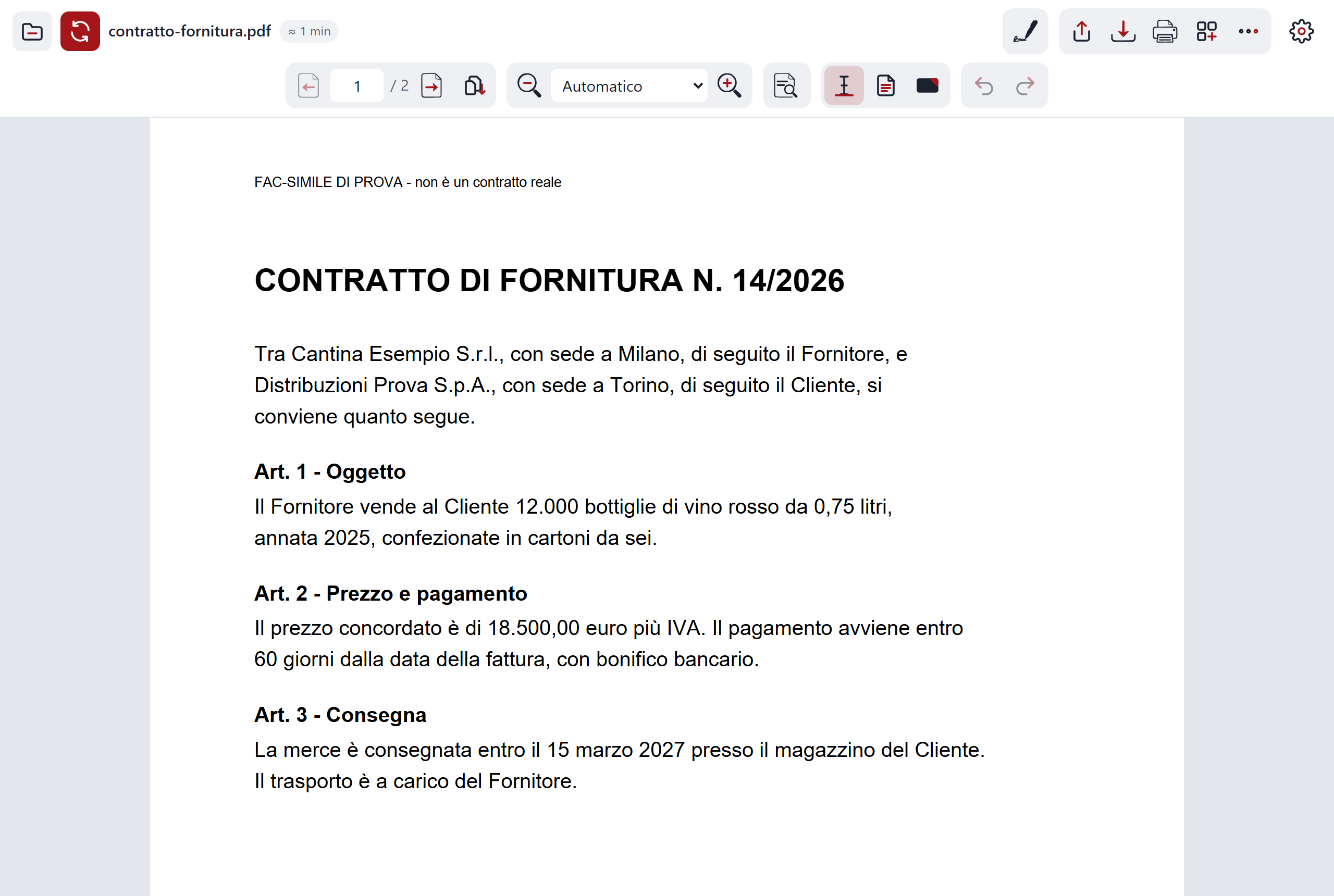
Next to the document's name you see the reading time, for example "≈ 3 min". It is an estimate at 200 words per minute.
A bar above the page may suggest the right move:
- Straighten, if the scan is crooked.
- Fill in, if the document looks like a form.
- Summarise, if the document is long.
- Translate, if it is in English, German, French or Spanish.
"Leave it as it is" closes the bar and changes nothing. Fill in, Summarise and Translate use AI, so they need the compiler service connected (see below).
Installing C-A-R-T-A as an app
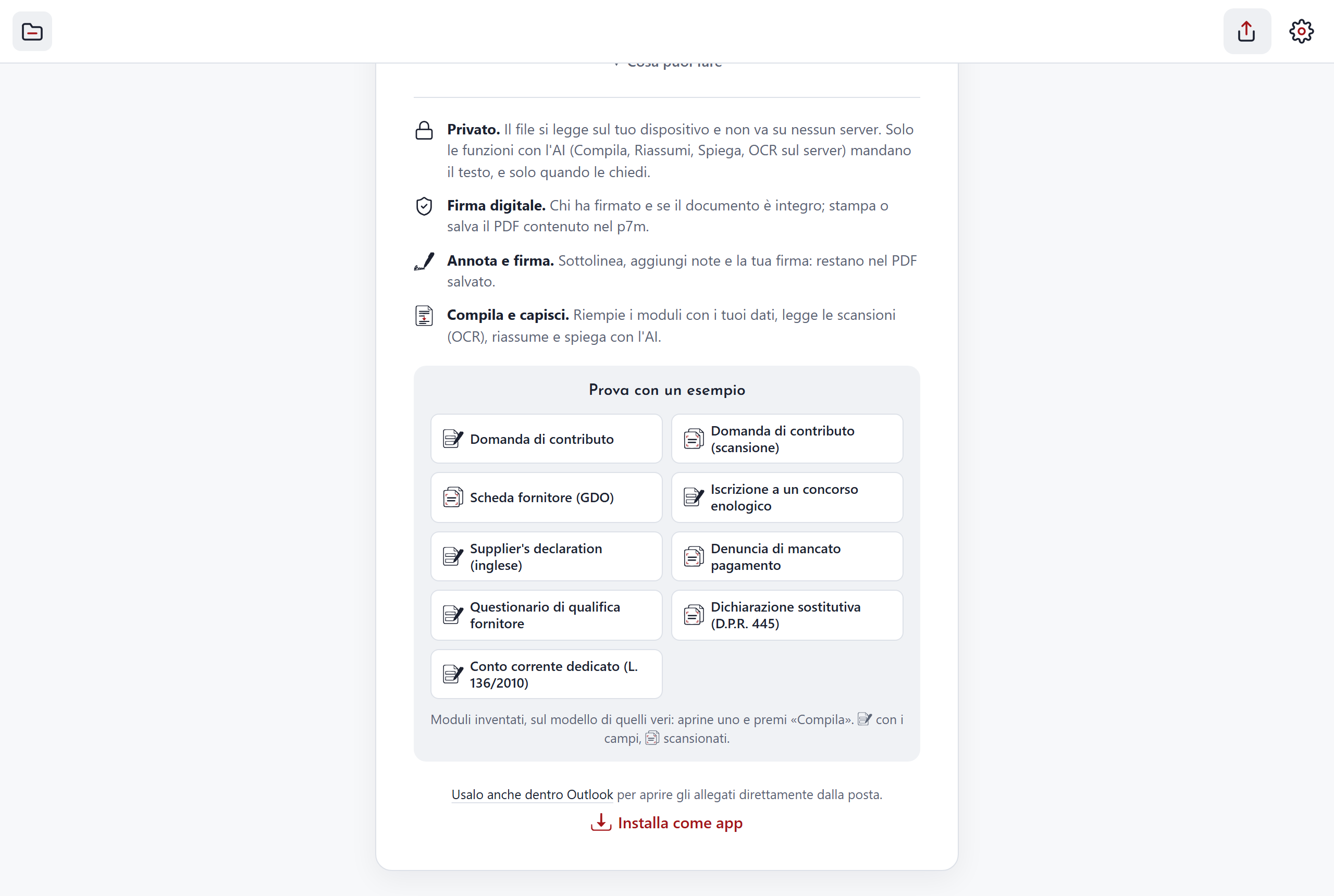
Installed, C-A-R-T-A has its own icon, opens in its own window and also works without a network. Installing is not required: C-A-R-T-A can also be used directly in the browser, with nothing to install.
iPhone and iPad
- Open carta.deco.it.fo with Safari.
- Tap Share.
- Choose Add to Home Screen and confirm.
The C-A-R-T-A icon appears on the Home Screen.
Android
- Open carta.deco.it.fo with Chrome.
- Tap the browser menu (the three dots) and choose Install app.
- Confirm.
After that, to open a PDF with C-A-R-T-A, start from the other app (mail, files…), tap Share and choose C-A-R-T-A.
Computer
You need Chrome or Edge.
- Open carta.deco.it.fo.
- In the address bar click the "install" icon and confirm. Alternatively, press "Install as an app" on the home page.
- From then on, right-click a PDF or a signed file, choose "Open with…" and then C-A-R-T-A.
Connecting the compiler service
Opening, reading, signing and annotating work right away. The AI features do not: they need the compiler service, the service that makes them work. It is a private service run by an organisation, not open to everyone.
Whoever manages it connects it, with a link. In practice:
- Whoever manages the compiler service sends you the link.
- You open it on the device you want to connect.
- Done: from then on Fill in, Summarise, Translate, Points and Explain appear.
The connection is made once for each device. In "Settings" you see whether the device is connected and you can press "Disconnect".
If a feature says it does not recognise the device, connect it again with the link. If it does not respond, usually you are not somewhere the compiler service can be reached, for example the office network.
With the compiler service connected, two of the three ways of reading scans also work: in the text-recognition menu, "On the server" and "With AI". The "On the device" way does not need it.
Filling in a form with your data
With the compiler service connected, open the form (a scan is fine too) and press Fill in. Or accept the suggestion in the bar above the page.
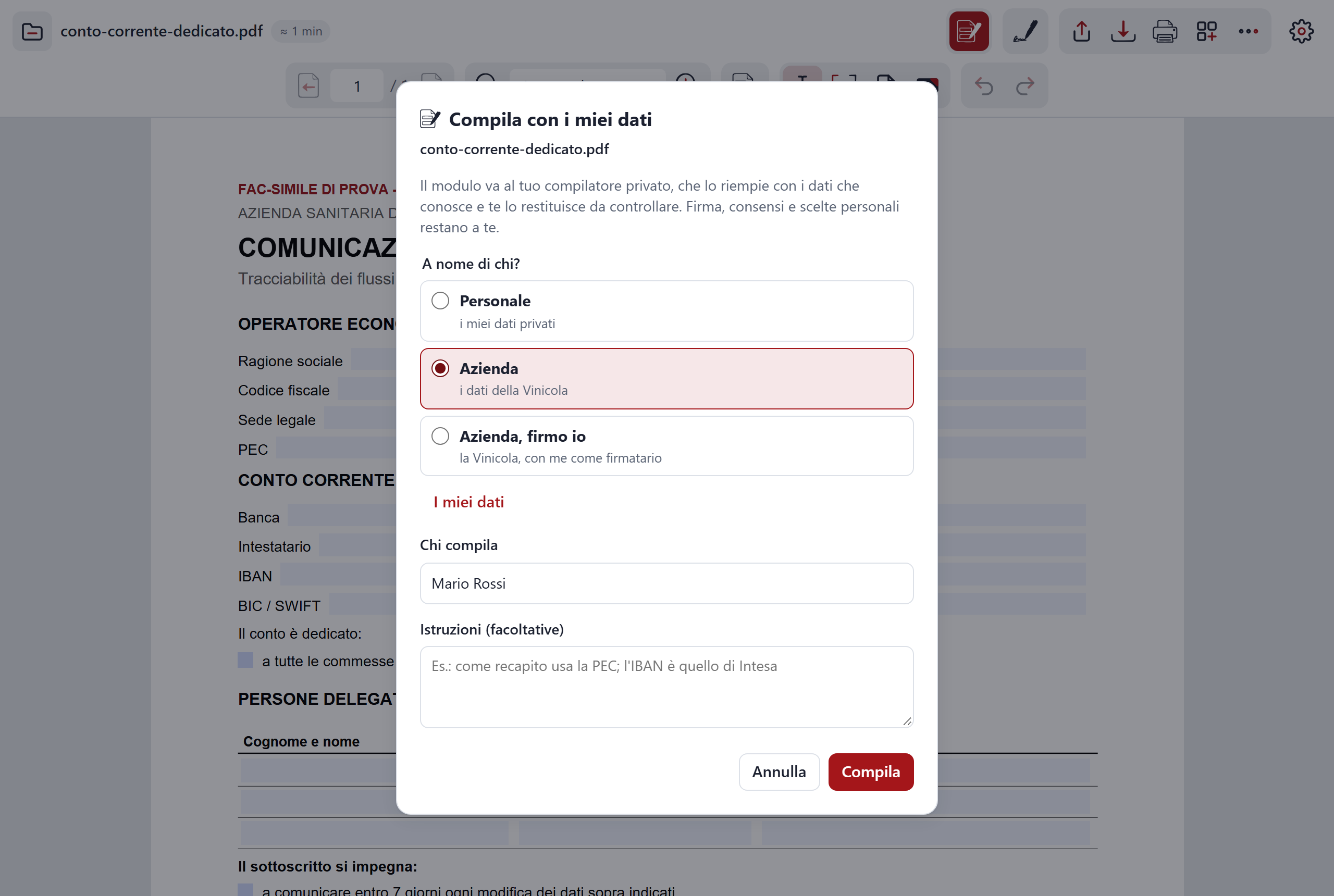
- On whose behalf? Choose the data set to use:
- Personal: your private data.
- Company: the company's data.
- Company, I sign: the company's data, with you as the signatory.
- Who is filling in. Type first name and surname.
- Instructions. Optional. You can write, for example, to use the PEC address as the contact.
- Press Fill in.
The AI gets the form and only the data of the set you chose. Signature, consents and personal choices stay with you.
The "Filling to check" panel
Next to the PDF the "Filling to check" panel appears. For each field you see the value and where it comes from. One click on a row takes you to the field on the page.
- To check. Some values are marked "To check". Until you have ticked them, when you save C-A-R-T-A asks you to confirm.
- Missing values. For each one you can choose "I'll write it", "Look for it" or "Sign now".
- Red warnings. They appear if an IBAN, a PEC address, a tax code or an SDI code has changed compared with the ones you already had.
- "Yes, save them". Saves the new data in the vault.
You can always correct the form's fields by hand. The AI can make mistakes: check every value before saving or sending.
The other AI buttons
- Summarise makes a summary of the document.
- Translate translates the whole document.
- Points picks the important sentences, for example deadlines, amounts and obligations, and underlines them. The panel explains why it chose them.
- Translate and Explain also work on a piece of text: select it and choose the item in the menu that appears. Explain also works on a box cropped from an image (for example a scan): the AI receives the crop.
Results stay in a panel next to the PDF, so you read them while looking at the document.
Your data for forms: the vault
To fill in forms, the AI needs your data. It lives in your organisation's password vault (Bitwarden or Vaultwarden), which C-A-R-T-A opens from the browser. The vault password does not leave your device.
In the vault there are two notes, both with the suffix "(C-A-R-T-A)":
- Data for forms (C.A.R.T.A.): your personal data.
- Data … for forms (C.A.R.T.A.), with the organisation's name instead of the dots: the company's data.
To view or change them press My data. You find it in the "Fill in" window and in Settings. In Settings you also choose which vault to use.
In Settings you also find "Who is filling in", the status of the compiler service, the notices and the version in use.
Saving, printing, sharing
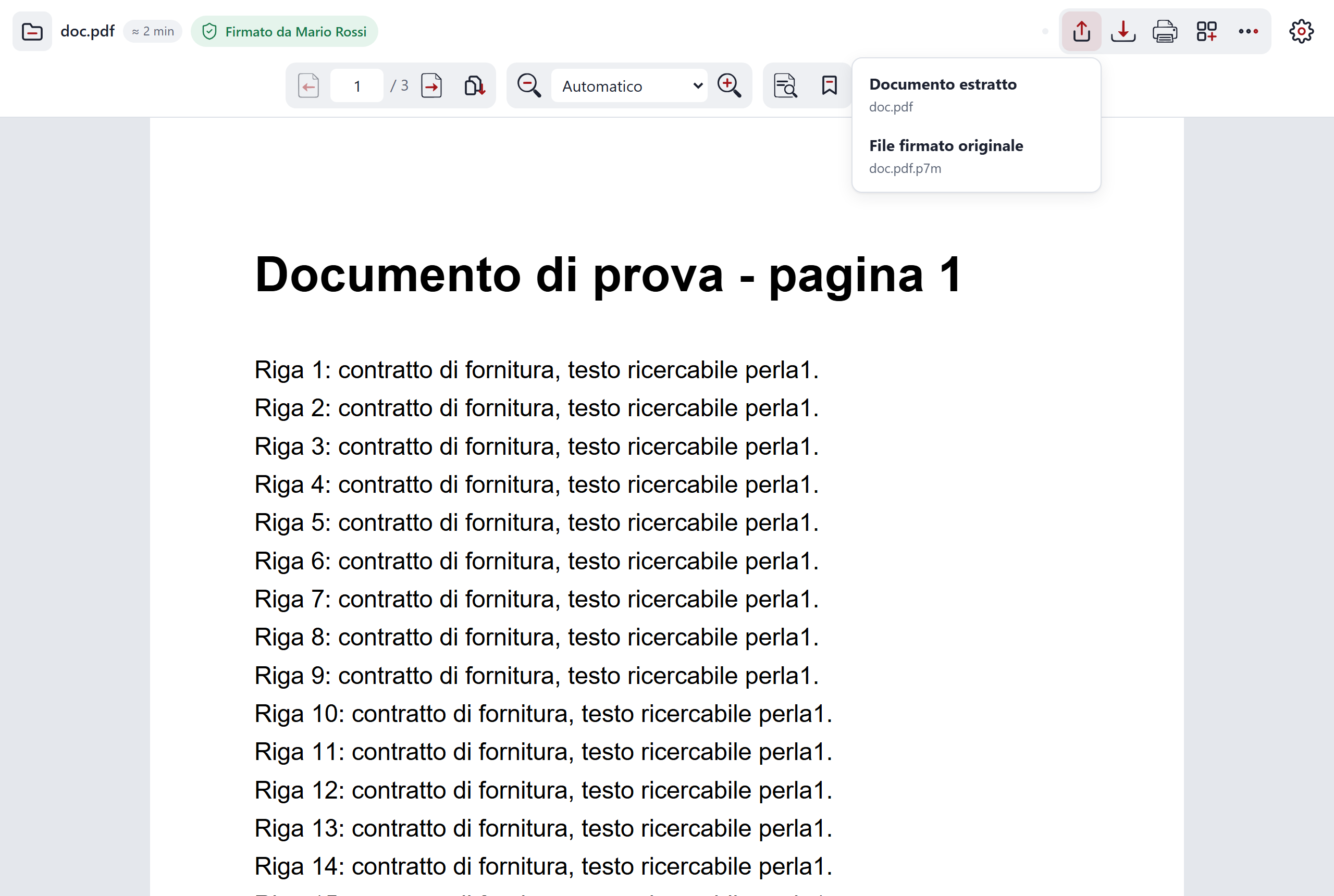
In the toolbar there are three buttons: Save, Print and Share.
- Save (
Ctrl+S) saves the PDF with what you added: form values, notes, underlining and signature. With a signed file it saves the extracted document; you can pass the original signed file to others with "Share". - Print (
Ctrl+P). In Chrome and Edge on a computer it uses the browser's print dialog. Otherwise C-A-R-T-A prepares the pages to print itself. - Share sends the document, or the original signed file, using your device's sharing. With no document open it shares the link to C-A-R-T-A.
If you close by mistake
While you work, C-A-R-T-A keeps a copy of the open document on your device, updated every 30 seconds. When you reopen it, the home page offers you Resume or Delete.
If you leave with unsaved changes, it asks what to do: Cancel, Leave without saving or Save.
Updating
When there is a new version, the Update button appears by itself in the toolbar. It stays there until you press it. If you are working on a document, save it before pressing it.
You can see the version in use on the home page and in Settings. What changes in each version is on the versions page.
Using it with other programs
Add-in for Outlook
The add-in adds an Open attachments button to Outlook. A pane opens with the list of attachments: PDFs, signed files and electronic invoices open with one click. In certified emails (PEC) it also shows the attachments contained inside postacert.eml.
- Open the C-A-R-T-A for Outlook page and download the file for Outlook.
- In Outlook open the personal add-ins and add the add-in from a file, choosing the one you downloaded. On the page you find the steps for each version of Outlook.
- Open a message with an attachment and press Open attachments.
You only need to do it once. Attachments are read only inside the pane, on your device.
Preview in classic Outlook and in File Explorer
To see a document without opening it, on Windows there is a C-A-R-T-A preview. It works for .pdf, .p7m, .p7s, .tsd and .m7m files, both in classic Outlook and in File Explorer. It also puts the C-A-R-T-A icon on these files and adds a shortcut.
It is installed with a Windows installer, once for each user, without administrator rights. Only for classic Outlook is one extra administrator step needed, once per computer (it is in the same folder as the installer): without it, Outlook says there is no preview handler. For File Explorer it is not needed. The installer is not signed: Windows may warn you before running it, and that is normal.
"Open in C-A-R-T-A" extension for Chrome and Edge
The extension sends to C-A-R-T-A the PDFs and signed files that the browser is about to open.
- PDFs you find on the web open in C-A-R-T-A automatically.
- PDFs on your computer open automatically only if, in the extension's details, you turn on "Allow access to file URLs".
- With a right-click on a link choose "Open in C-A-R-T-A".
- With a click on the extension's icon: if the tab is a PDF, it opens it in C-A-R-T-A; otherwise it opens C-A-R-T-A.
- With a right-click on the icon you find "Always open PDFs in C-A-R-T-A": use it to turn automatic opening off or on again.
The extension is not in the Chrome store. You load it by hand from chrome://extensions (in Edge edge://extensions): turn on developer mode, choose "Load unpacked" and point to the extension's folder. Chrome may remind you that you are in developer mode: for unpublished extensions that is normal.
iPad shortcut
On the iPad you cannot choose C-A-R-T-A as the default PDF reader. That is why there is a shortcut in Apple's Shortcuts app, Open in C-A-R-T-A: it takes the PDF, keeps it aside for 10 minutes and opens C-A-R-T-A, which picks it up.
The shortcut relies on the compiler service. Ask whoever manages the compiler service.
Keyboard shortcuts
On a Mac, use Cmd instead of Ctrl.
| Shortcut | What it does |
|---|---|
Ctrl+O |
Opens a file |
Ctrl+F |
Searches the document |
Ctrl+S |
Saves the document |
Ctrl+P |
Prints |
Ctrl+Z |
Undoes the last change |
Ctrl+Y |
Redoes the undone change |
Ctrl + |
Zooms in |
Ctrl - |
Zooms out |
Ctrl+0 |
Goes back to "Automatic" zoom |
Alt + drag |
Selects a box on the page |
Ctrl+F, zoom and Ctrl+Z/Ctrl+Y work with a PDF open.
Still in doubt?
- Features: everything C-A-R-T-A can do, one feature at a time.
- Tested devices: which devices and browsers it has been tested on.
- Frequently asked questions and the privacy page.